MikroTik MTCTCE practice labs
8 guided labs on RouterOS 7 that follow the MTCTCE training outline: the packet flow, connection tracking and mangle marks, simple queues with burst, HTB queue trees with dual limitation and priorities, PCQ for fair sharing, the queue types from FIFO, SFQ and RED to fq-codel and CAKE, and the DNS cache, DHCP relay and web proxy, ending in a troubleshooting lab and an ISP subscriber shaping capstone.
- Guided labs
- 8
- Follows
- MikroTik MTCTCE, on RouterOS v7
- Runs every lab
- Lite
- Devices
- RouterOS
Who these labs are for
For engineers who hold the MTCNA and are preparing for the MTCTCE course and exam, and anyone who shapes subscriber or office traffic on MikroTik routers.
Without a paid licence CHR limits each interface to about 1 Mbit/s, so the labs set their rates in kbit/s, and measured rates come in a little below the configured limits.
The 8 labs
Every lab in the folder, as the workspace lists them, with what each runs and the smallest plan that fits. Read on 2 November 2026.
MTCTCE course 8 labs
Shared folderMikroTik MTCTCE RouterOS v7 guided labs
One traffic-control topic per lab, then queues that don’t match and an ISP subscriber shaping capstone.
-
01Packet flow connection tracking and mangle marks
Before Fernvale's Riverside office can shape anything, its router has to recognise the traffic. Trace real packets through the RouterOS packet flow with counting rules, read the connection-tracking table, classify web, bulk and ping traffic with connection and packet marks, and set DSCP so the next hop knows what the traffic is.
3× RouterOS
3 vCPU, 768 MBFits LiteRuns in the free demo
-
02Simple queues - limits parents order and burst
Share Fernvale's Riverside office uplink between two staff PCs with simple queues: per-PC limits in both directions, a parent queue for the whole office, the first-match order that decides which queue a packet uses, and burst, which makes short downloads feel fast without raising the long-term rate. Every rate is measured with RouterOS's own bandwidth test.
4× RouterOS
4 vCPU, 1,024 MBFits LiteRuns in the free demo
-
03HTB queue trees - structure dual limitation priority and DSCP
Riverside's phones share the uplink with everyone's downloads, and calls break up whenever someone pulls a big file. The voice provider already marks its packets with DSCP 46. Classify by DSCP with mangle, build an HTB queue tree with a guaranteed rate and top priority for voice, and measure how HTB shares the link when both classes are busy.
4× RouterOS
4 vCPU, 1,024 MBFits LiteRuns in the free demo
-
04PCQ - fair sharing and per-subscriber caps with one queue
Fernvale's Riverside wireless access point serves many subscribers through one backhaul. Instead of a queue per subscriber, use PCQ: one simple queue that splits the link fairly between whoever is active, caps each subscriber at their plan's rate, and needs no change when a subscriber is added. Measure the sharing with three subscribers at once.
5× RouterOS
5 vCPU, 1,280 MBFits LiteRuns in the free demo
-
05Queue types - FIFO SFQ RED fq-codel and CAKE against bufferbloat
Riverside's staff say the Internet is fine until someone downloads, then calls and games lag by seconds. Reproduce the problem, bufferbloat, with a big FIFO queue, measure the ping times under load, and fix it with the modern queue types in RouterOS 7: fq-codel in a queue tree, then CAKE on the interface, which shapes, separates flows and controls delay on its own. Meet SFQ and RED on the way.
3× RouterOS
3 vCPU, 768 MBFits LiteRuns in the free demo
-
06DNS cache DHCP relay and options and the web proxy
Fernvale's new Quayside branch has no servers of its own. Make the branch router a caching DNS server with local names, relay the branch's DHCP to the head office server with built-in and custom options and a reserved address, and put a transparent web proxy in the path that blocks what the policy forbids.
3× RouterOS
3 vCPU, 768 MBFits LiteRuns in the free demo
-
07Troubleshooting - queues that dont match
Fernvale's Westbrook office has shaping configured, and none of it works: the guest kiosk downloads at full speed and the accounts PC ignores its class. Find four planted faults, a stray catch-all simple queue, a swapped upload/download pair, a packet mark that doesn't match its queue, and a queue tree on the wrong interface, by measuring and reading counters rather than guessing.
4× RouterOS
4 vCPU, 1,024 MBFits LiteRuns in the free demo
-
08Capstone - ISP subscriber shaping with plans PCQ and a voice class
Fernvale's Riverside access point sells two plans, Bronze and Silver, and carries a voice service that must come first. Its download shaping was set up in a hurry and three faults let one customer run unshaped, make Bronze customers share a single rate, and starve voice of its class. Find and fix them, then build the missing upload shaping, and prove every plan with measurements.
5× RouterOS
5 vCPU, 1,280 MBFits LiteRuns in the free demo
Devices and images
The exact Add Node images the labs use, and the vCPU and RAM their nodes are set to. Your plan counts what each running node is set to.
| Device | Image in Add Node | Set to | Labs | Nodes |
|---|---|---|---|---|
| MikroTik RouterOS | mikrotik-7.14.2 | 1 vCPU, 256 MB | 8 | 31 |
How to open the labs
Sign in to your workspace at
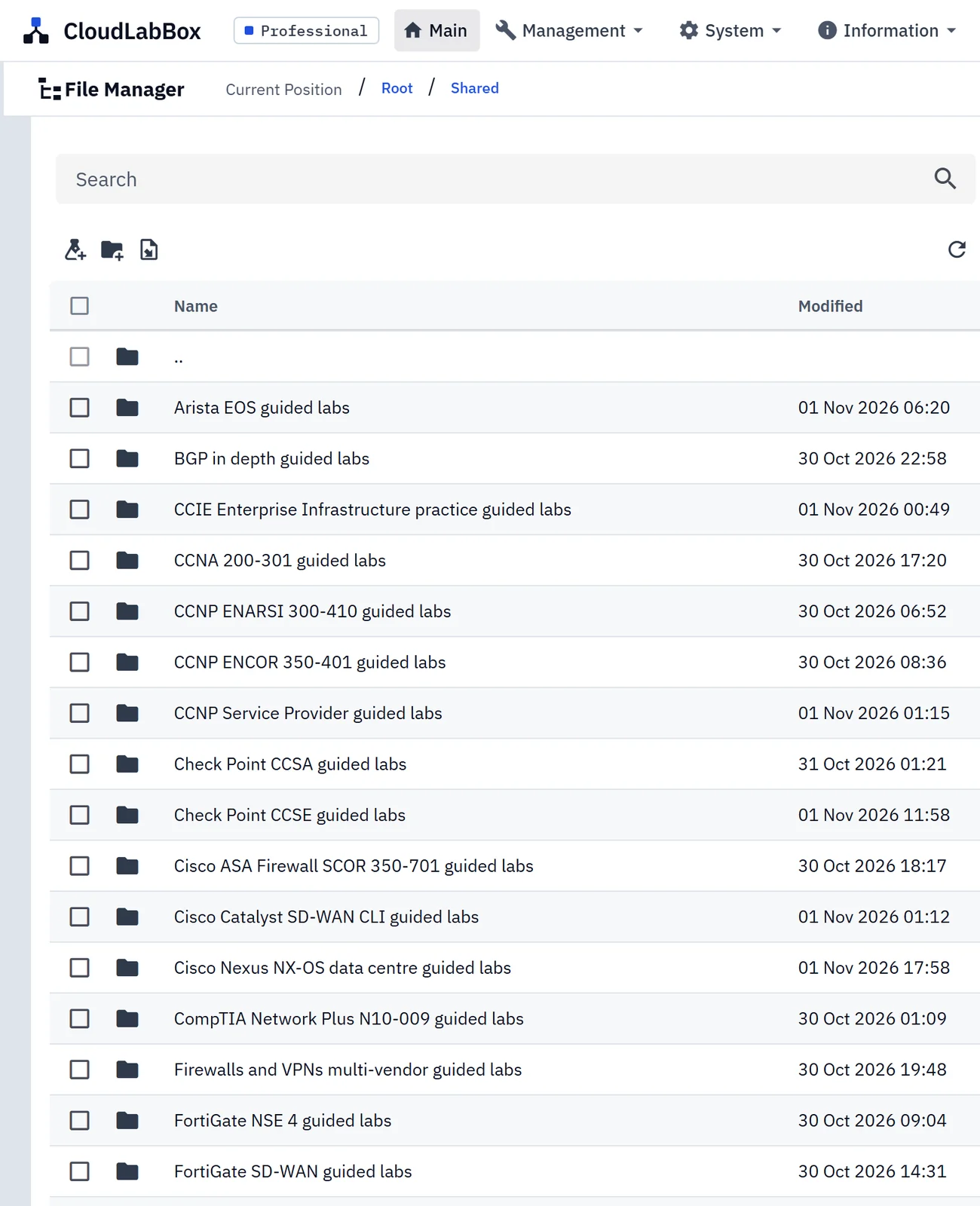
lab.cloudlabbox.com.In File Manager, open Shared, then the folder
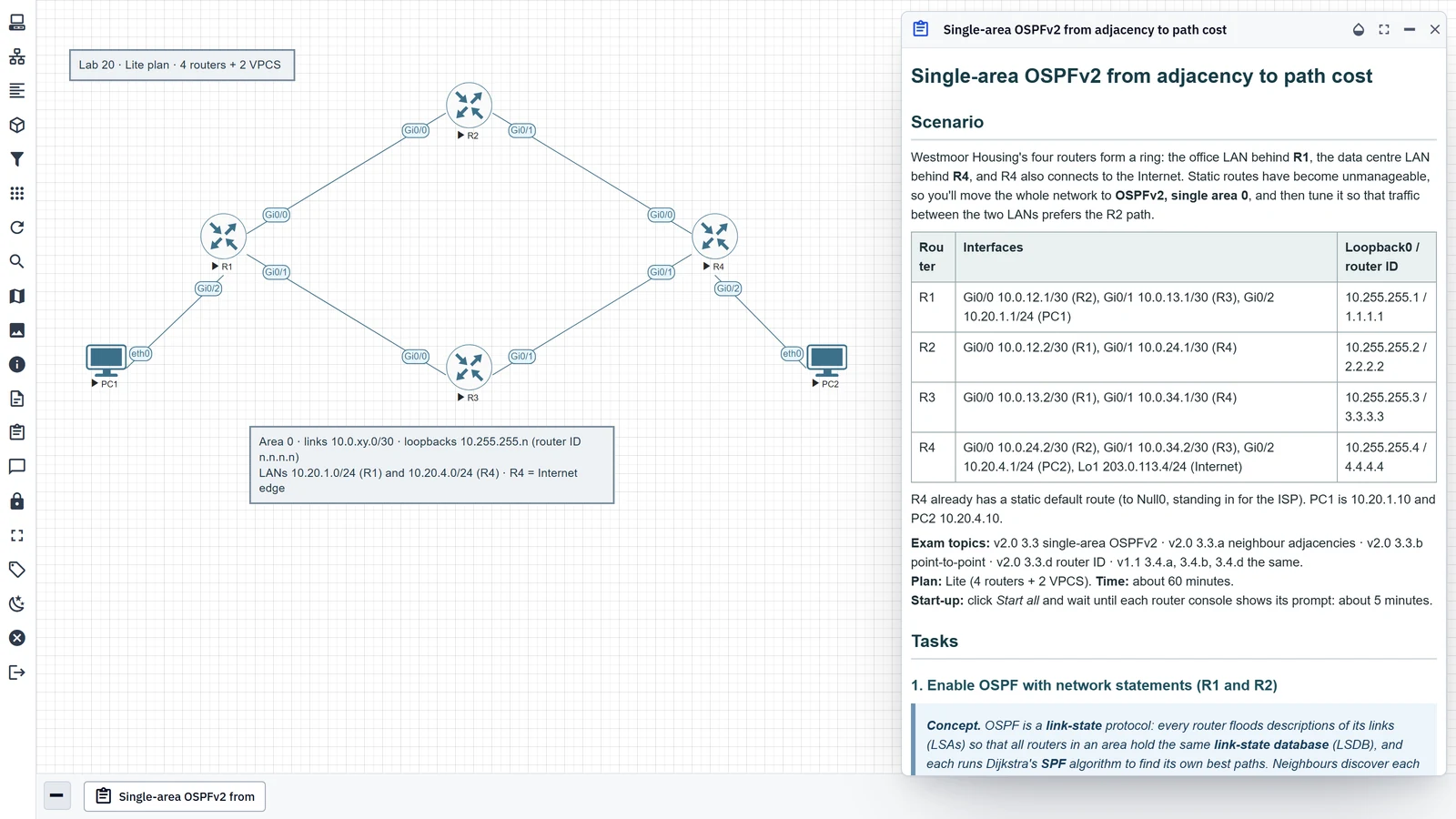
MikroTik MTCTCE RouterOS v7 guided labs.Open a lab and start its nodes, then open Lab Tasks for the steps.
The labs are read-only. You can start the nodes and configure the devices, but changes to the topology can’t be saved. To change a lab, rebuild it in your own folder.
Questions about the MikroTik MTCTCE labs
Are these MikroTik MTCTCE labs free?
They’re included with every lab plan, with nothing extra to pay, rather than free. Plans start at £3 a day or £0.50 an hour. To try one first, the free demo gives you 30 minutes with 6 vCPU and 8 GB, enough to run every one of these labs.
Which plan do I need for these labs?
Lite, with 6 vCPU and 8 GB, runs every lab here. EVE-NG admits a node by the vCPU and RAM configured on it, so a lab needs the total its running nodes are set to. The biggest here, “PCQ - fair sharing and per-subscriber caps with one queue”, needs 5 vCPU and 1,280 MB. Each lab’s Lab Tasks pane names the plan it needs.
Can I change these labs?
You can start the nodes and configure the devices, but the labs are read-only: changes to the topology can’t be saved. To change one, rebuild it in your own folder.
Are these labs from MikroTik?
No. CloudLabBox wrote them to follow the topics of MikroTik’s MTCTCE (MikroTik Certified Traffic Control Engineer) training outline. They aren’t training material from MikroTik, and CloudLabBox is independent of MikroTik.
Try a lab before you choose
The free demo is a real workspace for 30 minutes, with 6 vCPU and 8 GB: enough to run every one of these labs. No card and no email.
More practice labs
- CCNA practice labs online
- CompTIA Network+ practice labs
- CCNP ENCOR practice labs
- CCNP ENARSI practice labs
- CCNP Service Provider practice labs
- Cisco NX-OS data centre practice labs
- CCIE Enterprise Infrastructure practice labs
- Network automation practice labs
- Cisco ASA firewall practice labs
- Packet analysis labs with Wireshark and tcpdump
- FortiGate practice labs
- FortiGate SD-WAN practice labs
- Cisco Catalyst SD-WAN CLI practice labs
- Palo Alto firewall practice labs
- Check Point CCSA practice labs
- Check Point CCSE practice labs
- Multi-vendor firewall and VPN practice labs
- BGP practice labs across vendors
- Nokia SR OS NRS I practice labs
- MPLS and L3VPN practice labs
- VXLAN EVPN practice labs across vendors
- IPv6 practice labs across vendors
- Linux labs for network engineers
- Multi-vendor troubleshooting practice labs
- JNCIA-Junos practice labs
- JNCIS-ENT practice labs
- JNCIA-SEC and JNCIS-SEC practice labs
- JNCIS-SP JN0-364 practice labs
- JNCIP-ENT JN0-650 practice labs
- Arista EOS practice labs
- HPE Aruba Networking CX switching labs
- Huawei HCIA-Datacom practice labs
- HCIP-Datacom Core practice labs
- MikroTik MTCNA practice labs
- MikroTik MTCRE practice labs
- MikroTik MTCINE practice labs
- MikroTik MTCSE practice labs
- MikroTik MTCIPv6E practice labs
- All practice labs
CloudLabBox is independent of MikroTik. The labs follow exam topics and aren’t vendor training material; vendor names identify the exams and the images in the workspace.