Open lab devices in your own apps
Right-click a running node in your EVE-NG lab and choose how to connect: its console in your terminal, its web page in a new tab, its desktop in Remote Desktop or a VNC viewer.
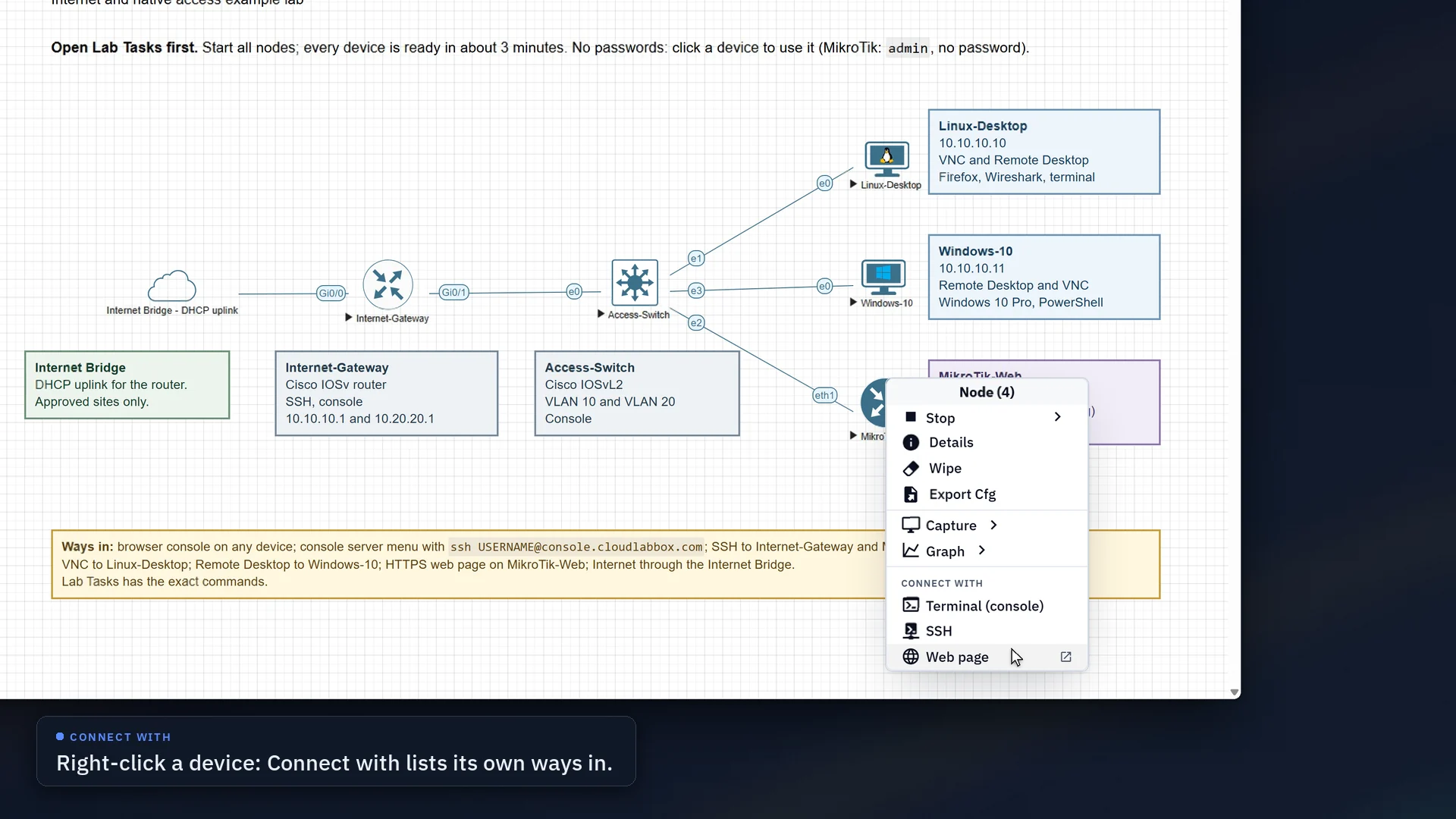
From the menu to your own app
Choose a way in the node's menu, then finish in an app you already have. Each tab is a real recording on the example lab.
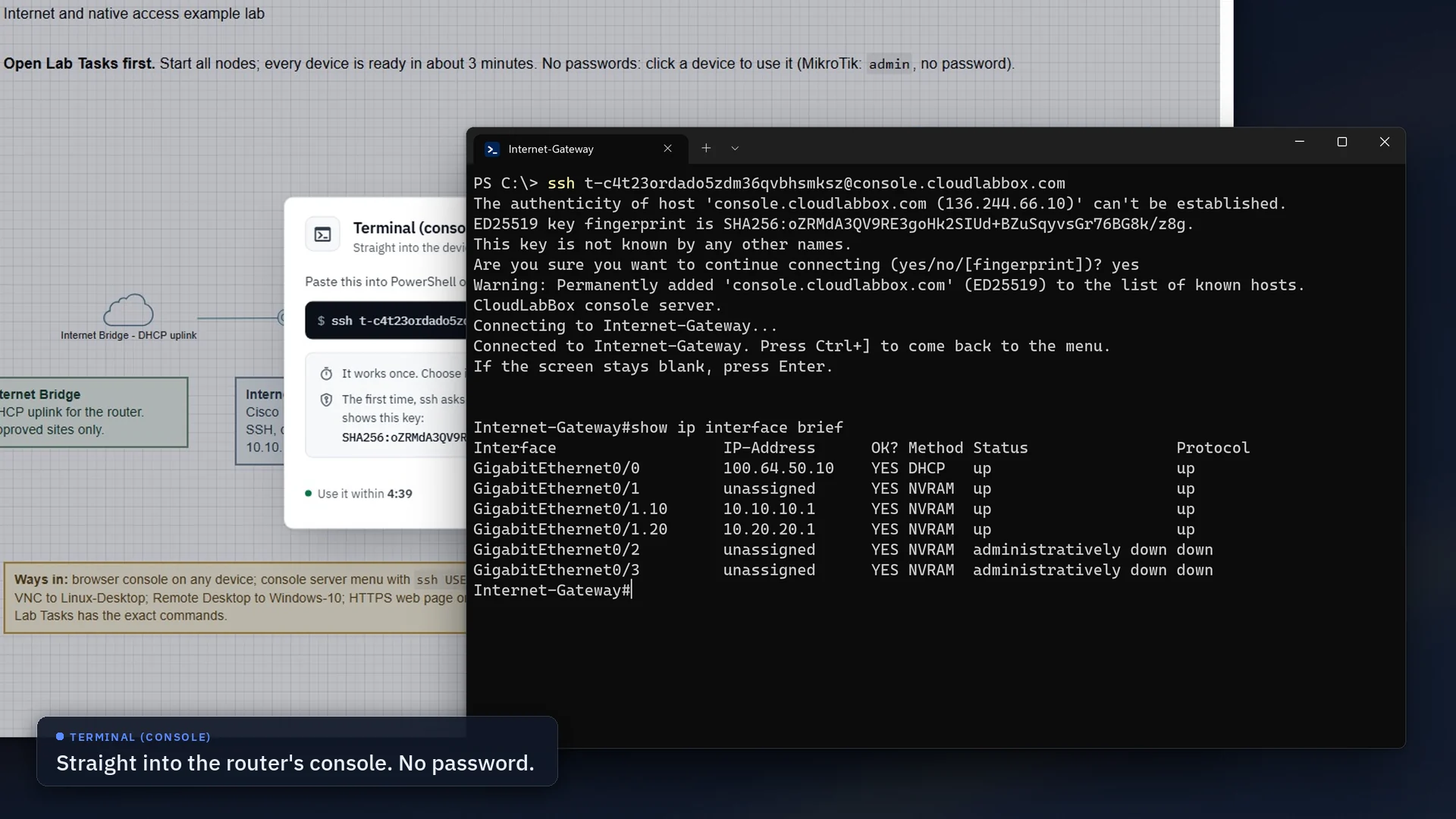
Choose Terminal (console) and the lab page gives you a one-time command. Paste it into a terminal and you're at the device's console prompt, with no password.
ssh t-…@console.cloudlabbox.comThe t-… part is new every time.
- Where to paste it
- PowerShell or Command Prompt on Windows, Terminal on macOS and Linux. Press Enter, and you see
Connected to Internet-Gateway
. If the screen stays blank, press Enter again. - The first time
- ssh asks whether to trust
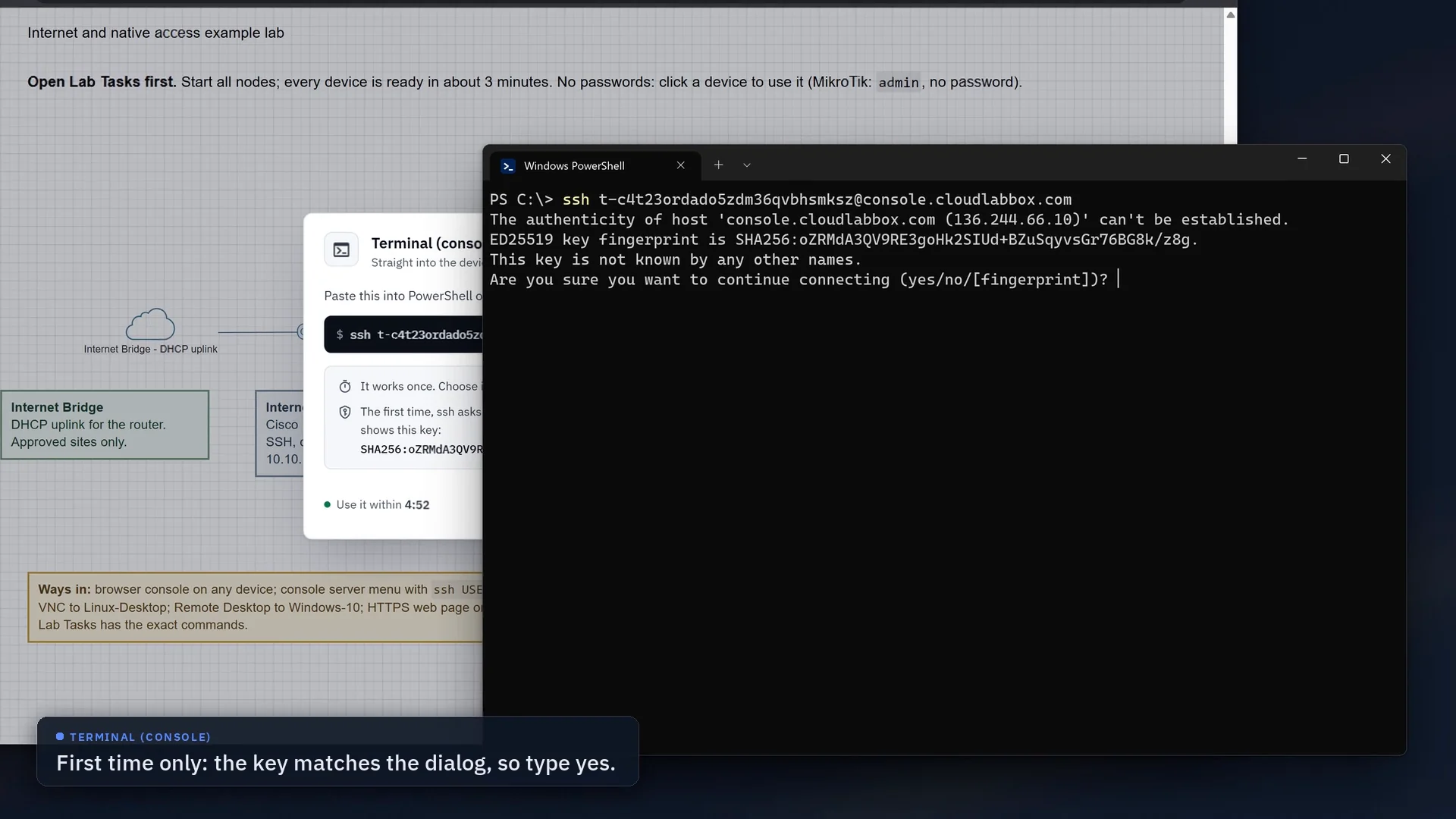
console.cloudlabbox.com. Typeyesif it shows the key in the dialog, the one under Check the host key. - How long it lasts
- Use the command within 5 minutes; it works once. The console can then stay open for up to 8 hours. Ctrl+] opens the console menu.
- Offered for
- Devices with a text (telnet) console in EVE-NG. In the example lab, Internet-Gateway, Access-Switch and MikroTik-Web.
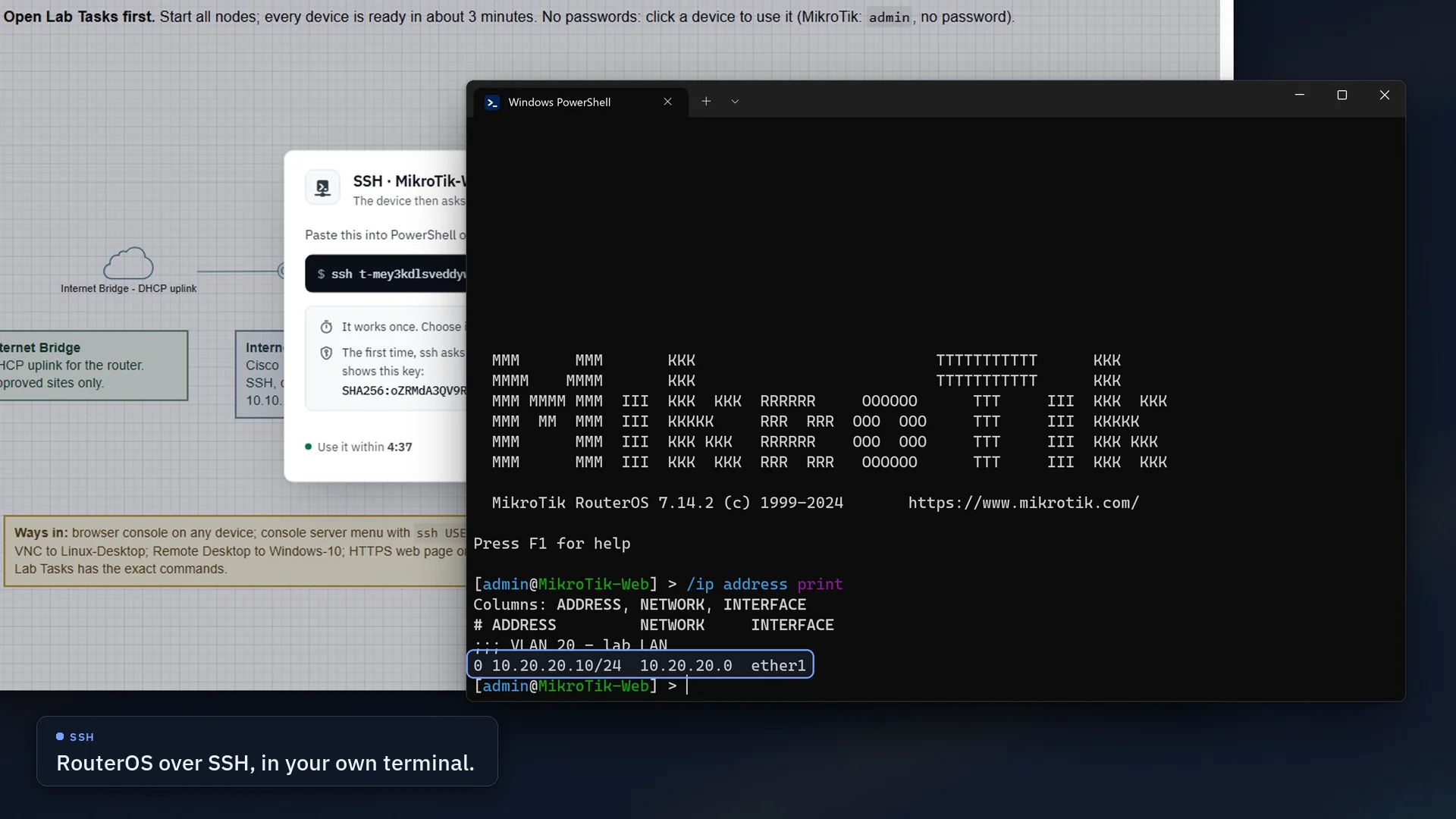
Choose SSH for the device's own SSH server. Paste the one-time command and the console server connects you; the device then asks for its own username and password in your terminal.
ssh t-…@console.cloudlabbox.comThe same shape as the console command.
- Signing in
- Use the device's own account. In the example lab, Internet-Gateway and MikroTik-Web take
adminwith no password. - Older images
- Cisco IOSv and other older images work as they are: there are no extra ssh options to add.
- How long it lasts
- Use the command within 5 minutes; it works once. The session can then stay open for up to 8 hours.
- Offered for
- Devices that answer on SSH, port 22, with an address on their lab network.
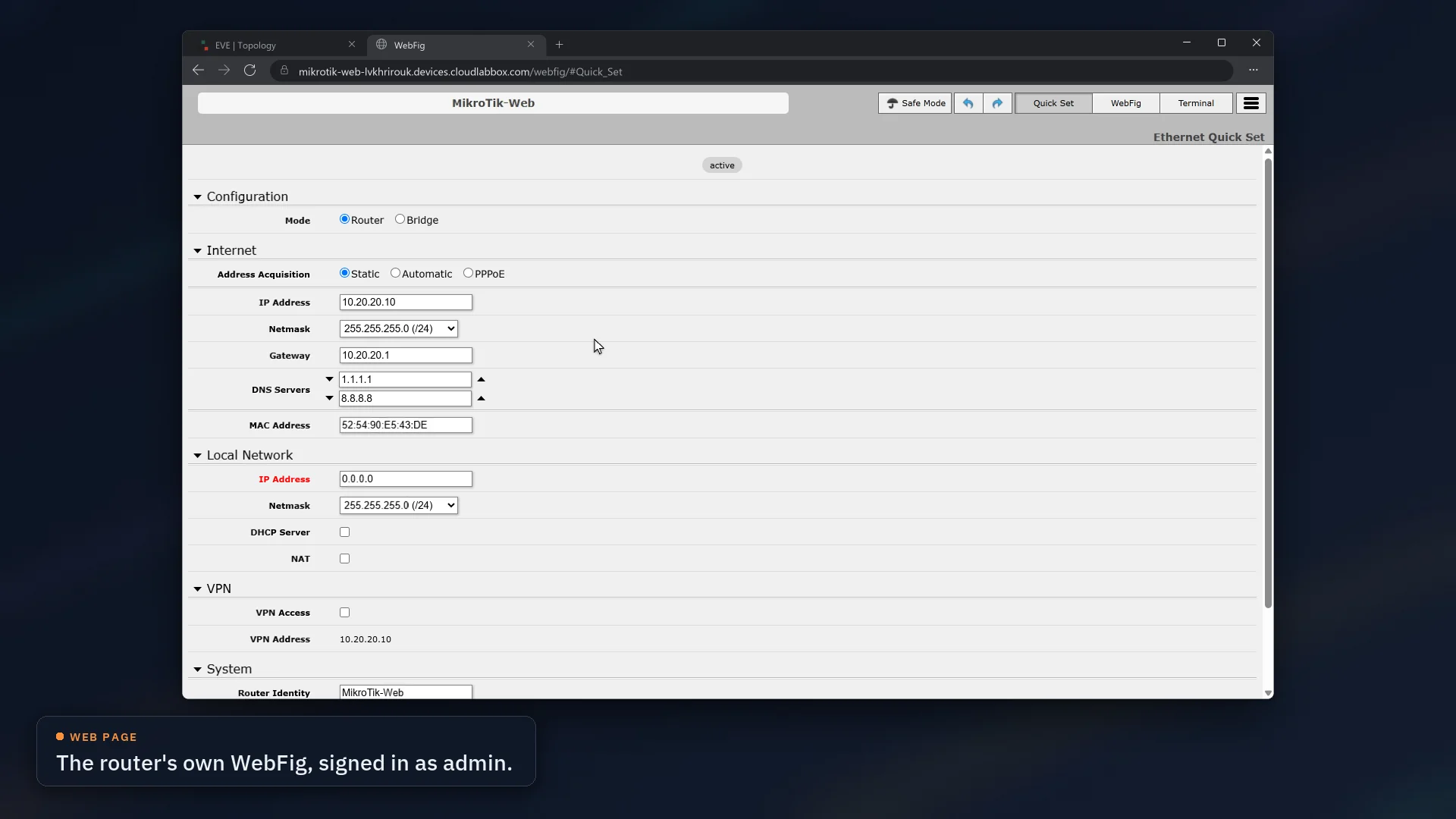
Choose Web page and the device's own web GUI opens in a new tab, at its own https address with a real certificate. There's no tunnel to keep open and no certificate warning.
https://mikrotik-web-….devices.cloudlabbox.com/Named after the device; the rest is new every time.
- Which browser
- Only the one that opened it. Pasted into another browser, or sent to someone, the link shows
This link has expired. Open the device again from your lab.
- How long it lasts
- The link opens once, within 2 minutes. The page then stays connected until it's unused for 30 minutes, or 8 hours in all.
- If pop-ups are blocked
- The lab page shows
Open the web page
instead. Select it within 2 minutes. - Offered for
- Devices with a web page on port 443 or 80 and an address on their lab network. In the example lab, MikroTik-Web opens RouterOS WebFig with no password.
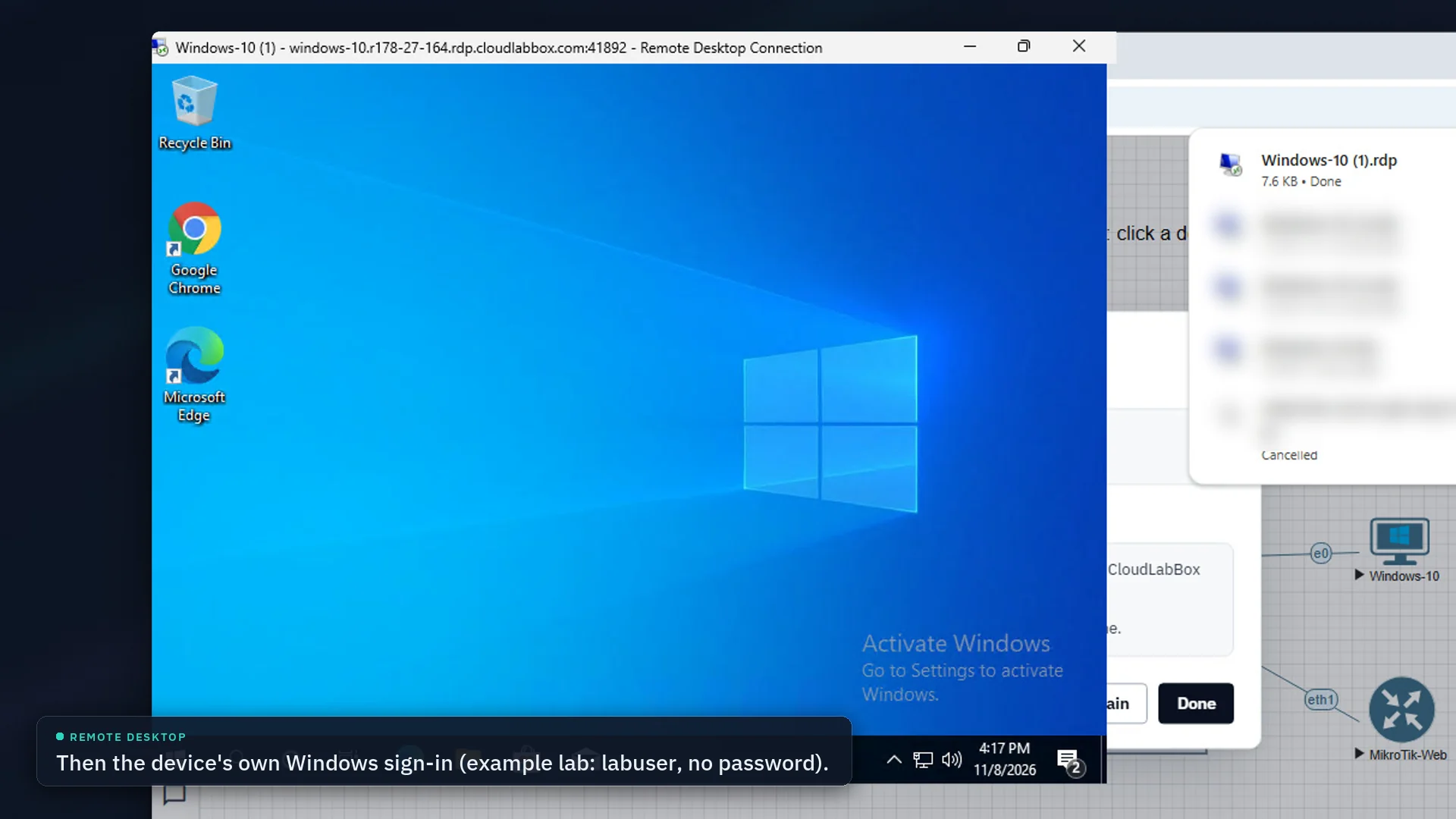
Choose Remote Desktop and a one-time .rdp file downloads. Open it: Windows' Remote Desktop Connection connects through our Remote Desktop gateway on port 443 and asks for the device's own sign-in.
Windows-10.rdpMade for that one device, in your downloads
- How long it lasts
- Open it within 10 minutes. After you disconnect, the same file reconnects for another 10 minutes, up to 8 hours in all.
- Signing in
- With the device's own account, not your CloudLabBox one. Windows-10 in the example lab is
labuserwith no password. How signing in works - Offered for
- Devices that answer on Remote Desktop, port 3389, and EVE-NG desktops with an RDP console. Windows needs Pro, Enterprise, Education or Server for incoming Remote Desktop.
- In the example lab
- Linux-Desktop, and Windows-10 in the example lab that comes with a paid plan.
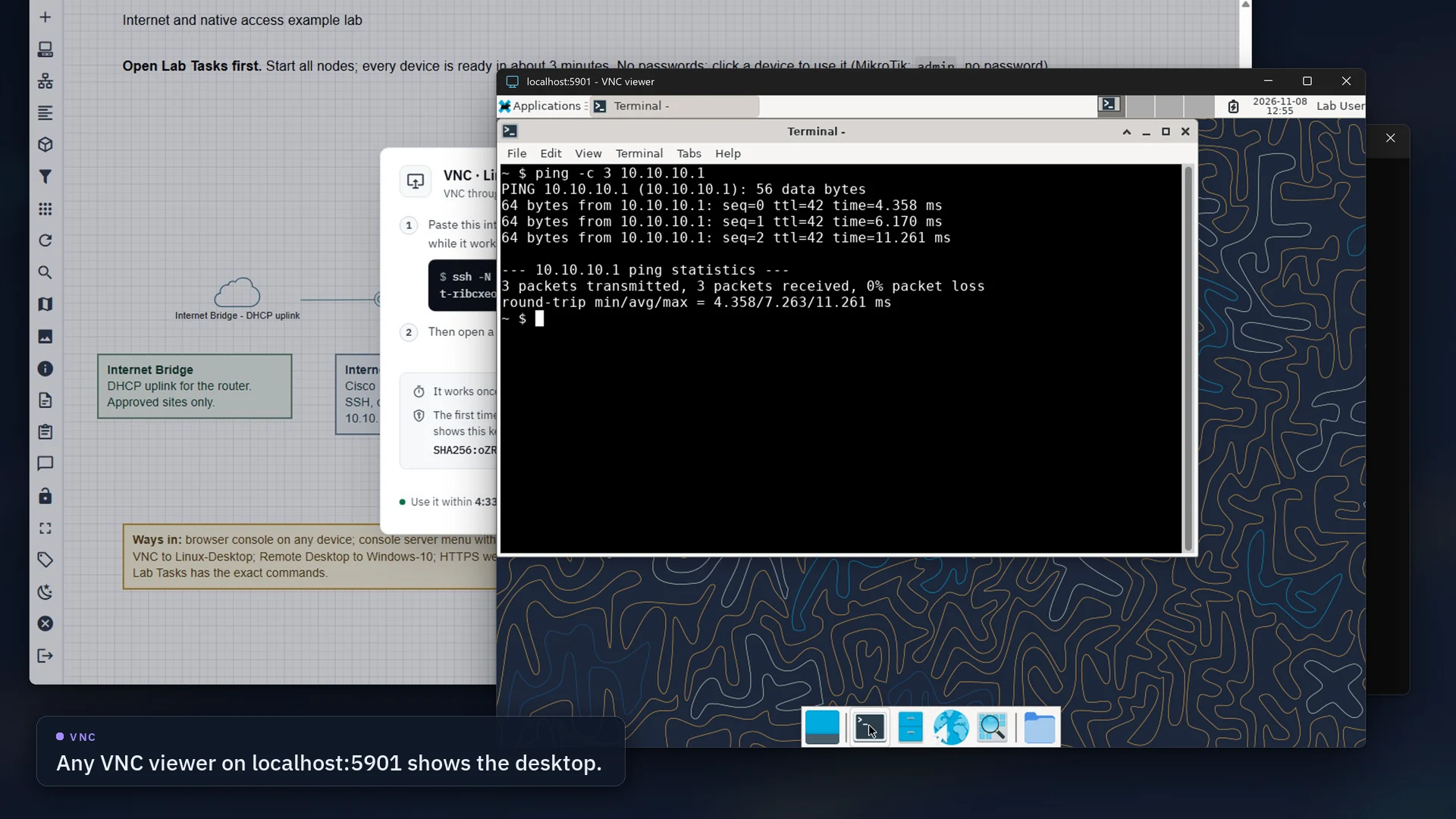
Choose VNC for a one-time tunnel command. Paste it into a terminal and leave it open: it shows nothing while it works. Then connect any VNC viewer to localhost:5901.
ssh -N -L 5901:device:5900 t-…@console.cloudlabbox.com
- Your viewer
- Any VNC viewer. Windows doesn't include one.
- Port 5901 in use?
- Change the first number, for example to
-L 5902:device:5900, and connect tolocalhost:5902. - How long it lasts
- Run the command within 5 minutes; it works once. The tunnel can then stay open for up to 8 hours.
- Offered for
- Nodes whose EVE-NG console is VNC, and devices running a VNC server on port 5900. In the example lab, Linux-Desktop and Windows-10.
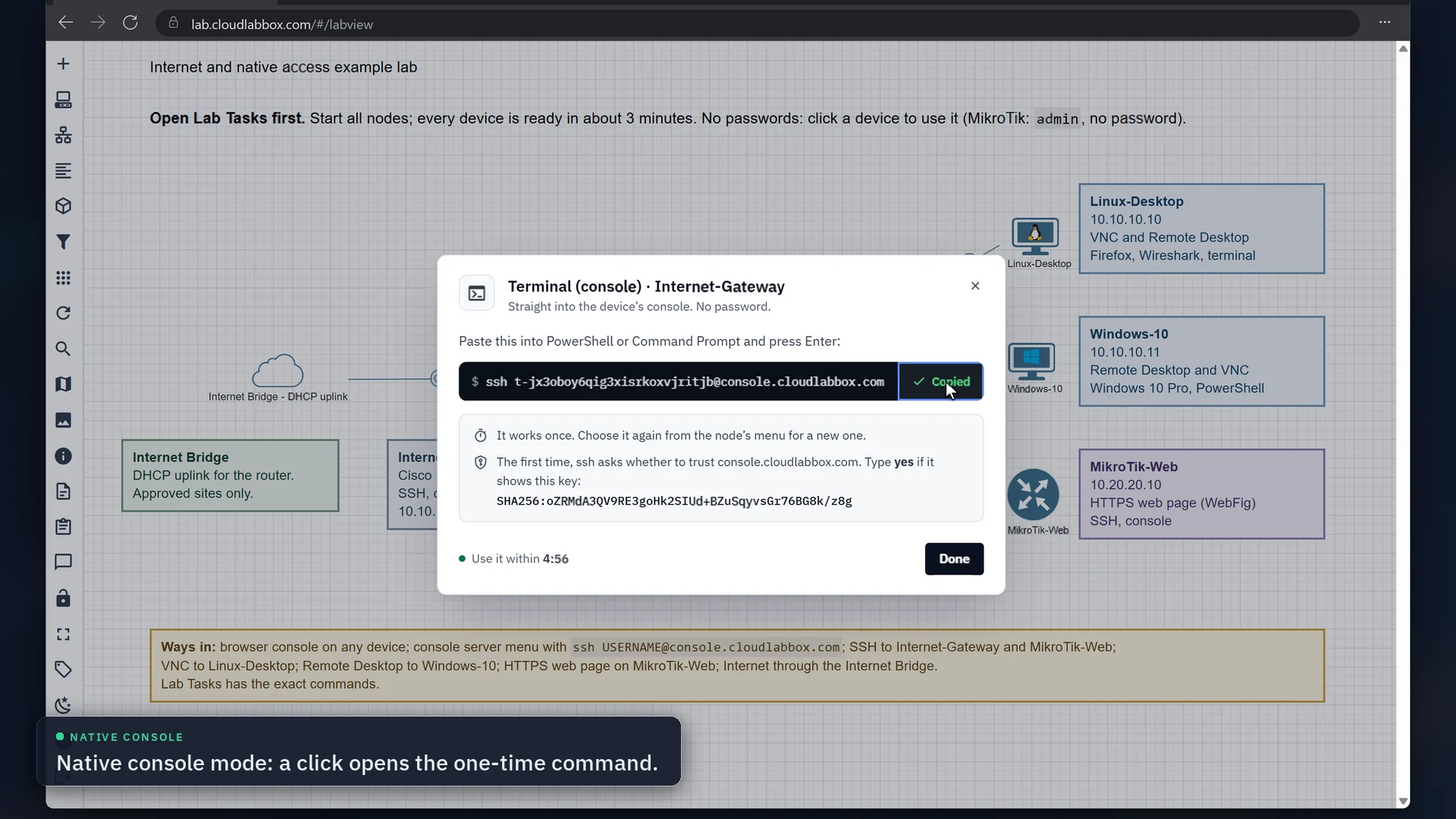
Rather connect with a click? Choose Native console on the lab sign-in page. Clicking a running node then opens it the matching way above, instead of EVE-NG's telnet:// and vnc:// links, which can't reach a hosted lab.
- Turn it on
- At
lab.cloudlabbox.com, set the console list toNative console
before you sign in. - What a click opens
- For a text console, the Terminal (console) dialog; for a VNC console, the VNC tunnel; for an RDP console, the .rdp file.
- Several at once
- Select the nodes and use Open Consoles: one list opens in the lab page, and each device connects on its own.
- Turn it off
- Sign in with
HTML console
, the default, and a click opens the console in the browser again.
Watch it start to finish
Under three minutes on the example lab, with captions: the right-click menu, then each way to connect, from the one-time command to the device's own screen.
Chapters
Recorded on the example lab with a test account. One-time links in the recording have expired.
Read the walkthrough's captions
Right-click a device Your lab, running in the browser. Right-click a running device to see how you can reach it. Each device lists only the ways in it really offers.
Terminal (console) Internet-Gateway offers its console and SSH. You get a one-time command. Copy it. Paste it into PowerShell and press Enter. First time only: the key matches the dialog, so type yes. You're on the router's console. No password. Ctrl+] opens the menu. It lists only this device.
SSH SSH signs in to the device's own SSH server. Another one-time command, for SSH this time. Paste it into PowerShell and press Enter. The device asks for its own login: admin, no password. RouterOS over SSH, in your own terminal.
Web page MikroTik-Web also serves a web page. It opens in a new tab, at a one-time address. A real certificate, and the link works only in this browser. The router's own WebFig, signed in as admin.
Remote Desktop Windows-10 offers Remote Desktop and VNC. Remote Desktop downloads a one-time .rdp file. The first time, Windows asks you to confirm: tick the box and press OK. Check the publisher is console.cloudlabbox.com, then Connect. Remote Desktop asks for the device's own Windows account, not your CloudLabBox sign-in. Example lab: labuser, no password. Your own Windows image: the account you set up in it. You're on the device: PowerShell pings the router.
VNC Linux-Desktop offers SSH, Remote Desktop and VNC. VNC gives you a one-time tunnel command. Copy it. Run it and leave it open. It shows nothing while it works. Point any VNC viewer at localhost:5901. The device's desktop, live: a terminal pings the router.
Native console Prefer clicking? Choose Native console when you sign in to the lab. A click on a device opens its one-time command straight away. Windows-10's console is VNC, so a click gives the tunnel. Nothing to install. Every way in, from your own apps.
Each device lists only what it offers
When you right-click a node, CloudLabBox checks which services that device answers on, and only those go in the menu.
Access-Switch has no address on a lab network, so its console is the only way in. Give a device an address and start its service, and the next right-click lists it.
Every way reaches only your own running devices, and only these services. It isn't a VPN.
| Device | Terminal (console) | SSH (22) | Web page (443, 80) | Remote Desktop (3389) | VNC (5900) |
|---|---|---|---|---|---|
| Internet-GatewayCisco IOSv router | Terminal (console)Listed | SSHListed | Not listed | Not listed | Not listed |
| Access-SwitchCisco IOSvL2 switch, no lab address | Terminal (console)Listed | Not listed | Not listed | Not listed | Not listed |
| Linux-DesktopLinux desktop | Not listed | SSHListed | Not listed | Remote DesktopListed | VNCListed |
| MikroTik-WebMikroTik RouterOS router | Terminal (console)Listed | SSHListed | Web pageListed | Not listed | Not listed |
| Windows-10Windows desktop, paid plans' example lab | Not listed | Not listed | Not listed | Remote DesktopListed | VNCListed |
One-time links to your own devices
Each connection is made when you choose it, for your account and that one device, and it stops working on its own.
- Commands work once: run one again and it says
This sign-in command has expired or was already used. Open the device again from your lab.
- A web page link opens only in the browser that opened it from your lab.
- Only your own running devices can be reached, and only the services in the menu.
| Connection | Use it within | Then it lasts |
|---|---|---|
| Terminal (console), SSH | 5 minutes, once | Up to 8 hours |
| VNC tunnel | 5 minutes, once | Up to 8 hours |
| Web page | 2 minutes, once, in the same browser | Until unused for 30 minutes, or 8 hours in all |
| Remote Desktop | 10 minutes | Reconnects until 10 minutes after you disconnect, up to 8 hours |
Check the host key the first time
The first time a command connects, ssh shows the console server's ED25519 key fingerprint and asks whether to trust it. It must be:
SHA256:oZRMdA3QV9RE3goHk2SIUd+BZuSqyvsGr76BG8k/z8gIf it's different, don't type yes. Tell us on Discord (opens in a new tab) or at cloudlabbox@gmail.com.
If port 22 is blocked
Add -p 443 to the command from the menu, for example ssh -p 443 t-…@console.cloudlabbox.com. Web pages and Remote Desktop already use port 443.
Signing in to the console server yourself works the same way: ssh -p 443 USERNAME@console.cloudlabbox.com.
How it counts towards your time
While a connection is in use, it counts as active use exactly like the browser workspace: a terminal or tunnel open, a Remote Desktop connection open, or the device's web page used in the last minute. On-Demand credit is used, and running nodes aren't stopped for inactivity.
Using the workspace at the same time still counts as one session. Close windows and tunnels when you finish. An account with no time left gets Your CloudLabBox account has no active time left.
Signing in over Remote Desktop
Remote Desktop signs you in to the Windows device itself, as if you sat at it. Your CloudLabBox sign-in plays no part, and CloudLabBox doesn't set or change passwords on your devices.
Which account it wants
That depends on how the Windows on that device was set up, which is why some ask for a password and some don't.
| The Windows | Account | Password |
|---|---|---|
| Windows-10 in the example lab | labuser | None: leave it empty |
| A Windows image you installed | The one you made during Windows setup | The one you set then |
| A ready-made image from someone else | Whatever account they made | Theirs. If it isn't written down, it can't be seen from outside the device. |
What you'll see
Open the downloaded .rdp file. Opening it from Chrome's download bubble works the same as double-clicking it.
The first time, Windows asks you to confirm: tick I understand and allow RDP files to open on this device for my account and select OK. It asks once per Windows account.
Remote Desktop Connection then asks you to verify the publisher: it should say
console.cloudlabbox.com. Your PC's clipboard, drives and other devices stay off unless you tick them. Then connect.If it asks for an account before connecting, filled in with your own PC's account name, that's Network Level Authentication. Choose More choices, then Use a different account, type the device's account, such as
labuser, and leave the password empty if it has none.Windows then shows its own sign-in. Windows-10 in the example lab skips the account question and goes straight to Unlock the PC with
labuserfilled in: press Enter.A Linux desktop over Remote Desktop (xrdp) shows a small Session: Xorg box: press OK.
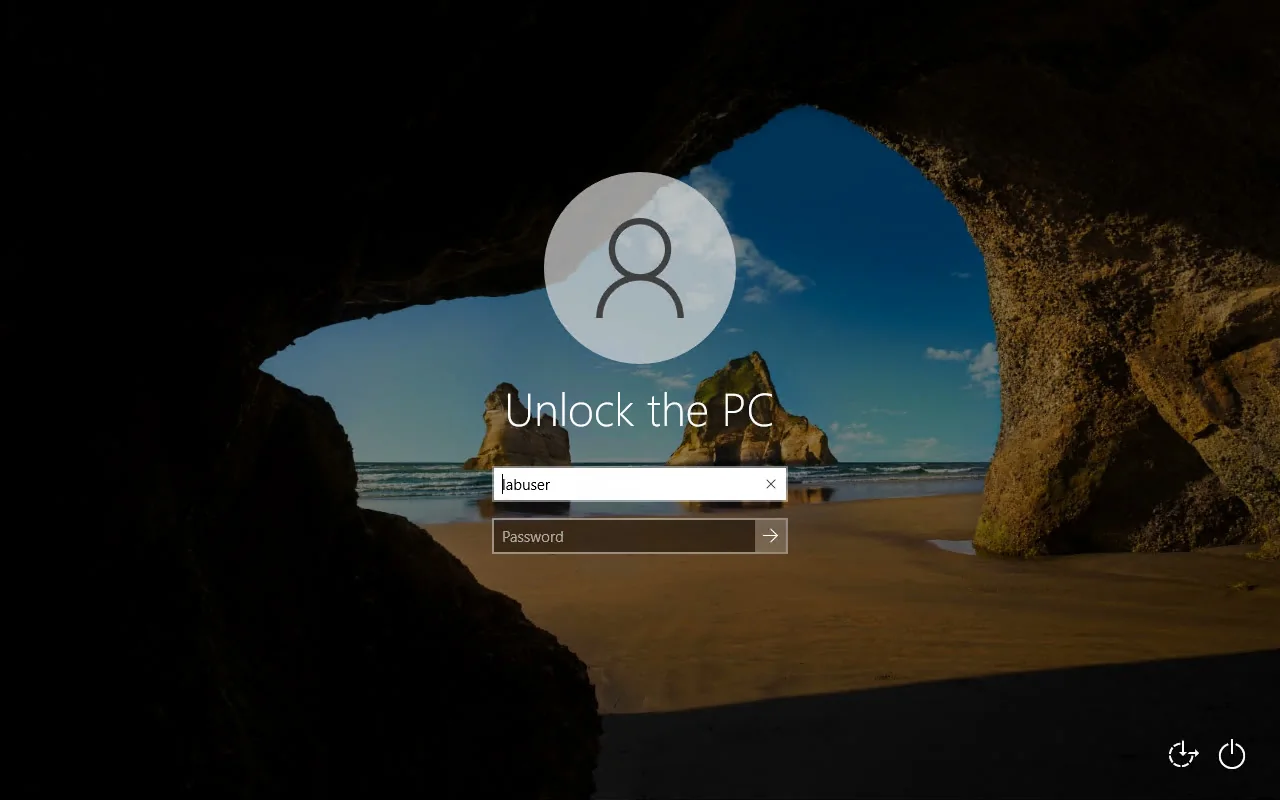
Let your own Windows node take Remote Desktop with no password
For Windows 10 and 11 Pro, Enterprise and Education, and Windows Server; Windows Home can't accept Remote Desktop. Sign in to the node's console in the lab as an administrator first. Or keep a password on the account and type it when Remote Desktop asks.
Turn on Remote Desktop. Press Windows+R, run
sysdm.cpl, open the Remote tab and chooseAllow remote connections to this computer
.Turn off Network Level Authentication. On the same tab, untick
Allow connections only from computers running Remote Desktop with Network Level Authentication
.Allow an account with no password over the network. Run
secpol.msc, go to Security Settings > Local Policies > Security Options, and setAccounts: Limit local account use of blank passwords to console logon only
to Disabled.Use the RDP security layer. Run
gpedit.msc, go to Computer Configuration > Administrative Templates > Windows Components > Remote Desktop Services > Remote Desktop Session Host > Security, enableRequire use of specific security layer for remote (RDP) connections
and choose RDP. Windows then lets the session start and shows its own sign-in screen.Let Remote Desktop through the firewall. In PowerShell as an administrator, run:
Get-NetFirewallRule -DisplayGroup 'Remote Desktop' | Set-NetFirewallRule -Enabled True
These settings make a lab machine easy to reach and less safe: with the RDP security layer, Remote Desktop can't check the device's identity, which Microsoft doesn't recommend. Keep them to lab machines.
Prefer the terminal?
Sign in to the console server with your CloudLabBox username and password. A menu lists your running devices, and SSH forwards reach their other services.
Open the device menu
ssh USERNAME@console.cloudlabbox.comType a device's number or name to open its console. Ctrl+] comes back to the menu,
hshows help andqquits.Open one console straight away
ssh -t USERNAME@console.cloudlabbox.com Internet-Gateway
Windows Terminal, PowerShell, macOS and Linux Terminal, PuTTY, SecureCRT and MobaXterm all work. Set up PuTTY, SecureCRT or MobaXterm
$ ssh labdemo@console.cloudlabbox.com
CloudLabBox console server. Sign in with your CloudLabBox username and password.
CloudLabBox sign-in
(labdemo@console.cloudlabbox.com) CloudLabBox password:

CloudLabBox console server - signed in as labdemo

  #  Device            Access                Lab
  1  Access-Switch     console               My Labs/Internet and native access example lab
  2  Internet-Gateway  console, network      My Labs/Internet and native access example lab
  3  Linux-Desktop     VNC console, network  My Labs/Internet and native access example lab
  4  MikroTik-Web      console, network      My Labs/Internet and native access example lab
  5  Windows-10        VNC console, network  My Labs/Internet and native access example lab

Type a number or device name to open its console. r refresh, h help, q quit.
Inside a console, press Ctrl+] to come back here.
cloudlabbox> Internet-Gateway
The recording didn't load. The full transcript is below.
Read the whole session as text
$ ssh labdemo@console.cloudlabbox.com
CloudLabBox console server. Sign in with your CloudLabBox username and password.
CloudLabBox sign-in
(labdemo@console.cloudlabbox.com) CloudLabBox password:

CloudLabBox console server - signed in as labdemo

  #  Device            Access                Lab
  1  Access-Switch     console               My Labs/Internet and native access example lab
  2  Internet-Gateway  console, network      My Labs/Internet and native access example lab
  3  Linux-Desktop     VNC console, network  My Labs/Internet and native access example lab
  4  MikroTik-Web      console, network      My Labs/Internet and native access example lab
  5  Windows-10        VNC console, network  My Labs/Internet and native access example lab

Type a number or device name to open its console. r refresh, h help, q quit.
Inside a console, press Ctrl+] to come back here.
cloudlabbox> Internet-Gateway
Connecting to Internet-Gateway...
Connected to Internet-Gateway. Press Ctrl+] to come back to the menu.
If the screen stays blank, press Enter.

Internet-Gateway - CloudLabBox example lab
**************************************************************************
* IOSv is strictly limited to use for evaluation, demonstration and IOS  *
* education. IOSv is provided as-is and is not supported by Cisco's      *
* Technical Advisory Center. Any use or disclosure, in whole or in part, *
* of the IOSv Software or Documentation to any third party for any       *
* purposes is expressly prohibited except as otherwise authorized by     *
* Cisco in writing.                                                      *
**************************************************************************
Internet-Gateway>show ip interface brief
Interface                  IP-Address      OK? Method Status                Protocol
GigabitEthernet0/0         100.64.247.10   YES DHCP   up                    up
GigabitEthernet0/1         unassigned      YES NVRAM  up                    up
GigabitEthernet0/1.10      10.10.10.1      YES NVRAM  up                    up
GigabitEthernet0/1.20      10.20.20.1      YES NVRAM  up                    up
GigabitEthernet0/2         unassigned      YES NVRAM  administratively down down
GigabitEthernet0/3         unassigned      YES NVRAM  administratively down down
Internet-Gateway>ping 1.1.1.1
Type escape sequence to abort.
Sending 5, 100-byte ICMP Echos to 1.1.1.1, timeout is 2 seconds:
!!!!!
Success rate is 100 percent (5/5), round-trip min/avg/max = 6/6/7 ms
Internet-Gateway>

CloudLabBox console server - signed in as labdemo

  #  Device            Access                Lab
  1  Access-Switch     console               My Labs/Internet and native access example lab
  2  Internet-Gateway  console, network      My Labs/Internet and native access example lab
  3  Linux-Desktop     VNC console, network  My Labs/Internet and native access example lab
  4  MikroTik-Web      console, network      My Labs/Internet and native access example lab
  5  Windows-10        VNC console, network  My Labs/Internet and native access example lab

Type a number or device name to open its console. r refresh, h help, q quit.
Inside a console, press Ctrl+] to come back here.
cloudlabbox> h

Open one console straight away:
  ssh -t labdemo@console.cloudlabbox.com DEVICE     (or sign in as labdemo:DEVICE)

Use your own apps. Run one of these on your computer and leave it open:
  Remote Desktop   ssh -N -L 13389:DEVICE:3389 labdemo@console.cloudlabbox.com
                   then connect Remote Desktop to localhost:13389
  VNC              ssh -N -L 5901:DEVICE:5900 labdemo@console.cloudlabbox.com
                   then open localhost:5901 in a VNC viewer
  SSH              ssh -J labdemo@console.cloudlabbox.com USER@DEVICE
  Web page         ssh -N -L 8443:DEVICE:443 labdemo@console.cloudlabbox.com
                   then browse to https://localhost:8443
  Telnet console   ssh -N -L 2001:DEVICE:23 labdemo@console.cloudlabbox.com
                   then telnet localhost 2001

DEVICE is the name shown in the menu. SSH, Remote Desktop, VNC and web
work for devices marked "network" (they have an address on their lab
network), and only for services the device itself runs.
cloudlabbox> q

Connection to console.cloudlabbox.com closed.
$| To open | Run | Then |
|---|---|---|
| Remote Desktop | ssh -N -L 13389:DEVICE:3389 USERNAME@console.cloudlabbox.com | Remote Desktop to localhost:13389 |
| VNC | ssh -N -L 5901:DEVICE:5900 USERNAME@console.cloudlabbox.com | A VNC viewer to localhost:5901 |
| Web page | ssh -N -L 8443:DEVICE:443 USERNAME@console.cloudlabbox.com | https://localhost:8443, where a certificate warning is normal. For HTTP, -L 8080:DEVICE:80 |
| SSH on the device | ssh -J USERNAME@console.cloudlabbox.com USER@DEVICE | Sign in with the device's own account (USER) |
| Telnet console | ssh -N -L 2001:DEVICE:23 USERNAME@console.cloudlabbox.com | Telnet to localhost port 2001 in PuTTY, SecureCRT or any telnet client |
If something doesn't connect
There's no Connect with section in the menu
It's there for one running node at a time: start the node, then right-click that node on its own, not a selection of several. If CloudLabBox can't be reached for a moment, the menu shows EVE-NG's own items only; right-click again a minute later.
Web page isn't listed for a device behind your own lab router
CloudLabBox reaches the device by its own address, so the router in front of it must not use NAT for the device's network, and the device needs an address the lab can route to. Turn off NAT for that network, check the route, send one normal packet from the device, such as ping 1.1.1.1, then right-click it again.
A way you expected isn't listed
The device didn't answer on that service. Check that it's running, has an address on its lab network, and has the service turned on, then right-click it again. Behind a lab router, send one normal packet from the device first, such as ping 1.1.1.1.
The command says it has expired or was already used
Each command works once, within 5 minutes. Right-click the node and choose it again for a new one.
The web page says This link has expired
A web link opens once, within 2 minutes, and only in the browser that opened it from your lab. Right-click the node in the browser you want to use and choose Web page again. A link copied into another browser, or sent to someone else, always shows this page.
The new tab didn't open
Your browser blocked it. The lab page shows Open the web page
instead: select it within 2 minutes, or allow pop-ups for lab.cloudlabbox.com.
Remote Desktop asks for a username and password
It wants the Windows device's own account, not your CloudLabBox one. Choose More choices, then Use a different account, and type the device's account; in the example lab that's labuser with the password left empty. Read how signing in works
Remote Desktop won't connect
Open the file within 10 minutes of downloading it, or choose Remote Desktop again for a new one. A Windows device needs Pro, Enterprise, Education or Server, with Remote Desktop and its firewall rules turned on, and an account you can sign in with.
ssh warns that the connection isn't post-quantum
OpenSSH 10.1 and newer print WARNING: connection is not using a post-quantum key exchange algorithm.
for the console server. It's a warning, not an error: the connection works. Add -o WarnWeakCrypto=no-pq-kex to the command to hide it. The OpenSSH built into Windows doesn't print it.
SSH to an older device won't sign in
If the terminal says This device's SSH only offers key exchanges the console doesn't use. Open its Terminal (console) instead.
, use Terminal (console) for that device.
It says your account has no active time left
Connections need an active plan or On-Demand credit, like the lab workspace. Extend your plan or add hours on the Account page.
It says there are too many connection requests
An account can start 30 connections in 10 minutes. Wait a few minutes, then choose the way again. If it says too many connections are open, close the windows, tabs and tunnels you no longer use first.
A forward to a device behind a lab router fails
CloudLabBox learns the path to a routed device from its normal traffic through the lab's Bridge gateway. Send one normal packet from the device, such as a ping to 1.1.1.1, then try again. Don't use source NAT on the lab gateway. Read the internet set-up guide.
Port 22 is refused, or ssh warns about the host key
Your network may block port 22: add -p 443 to the command. If ssh warns about the host key, compare it with the fingerprint above. If it doesn't match, don't connect, and tell us.
Try it on the free demo
Right-click the devices in the demo's example lab while it runs: 30 minutes in a real workspace, with no card and no email.
The demo page shows how many free seats there are.