Docs for your hosted EVE-NG lab
Commands, default passwords, image names and short guides for working in your CloudLabBox lab.
Start here
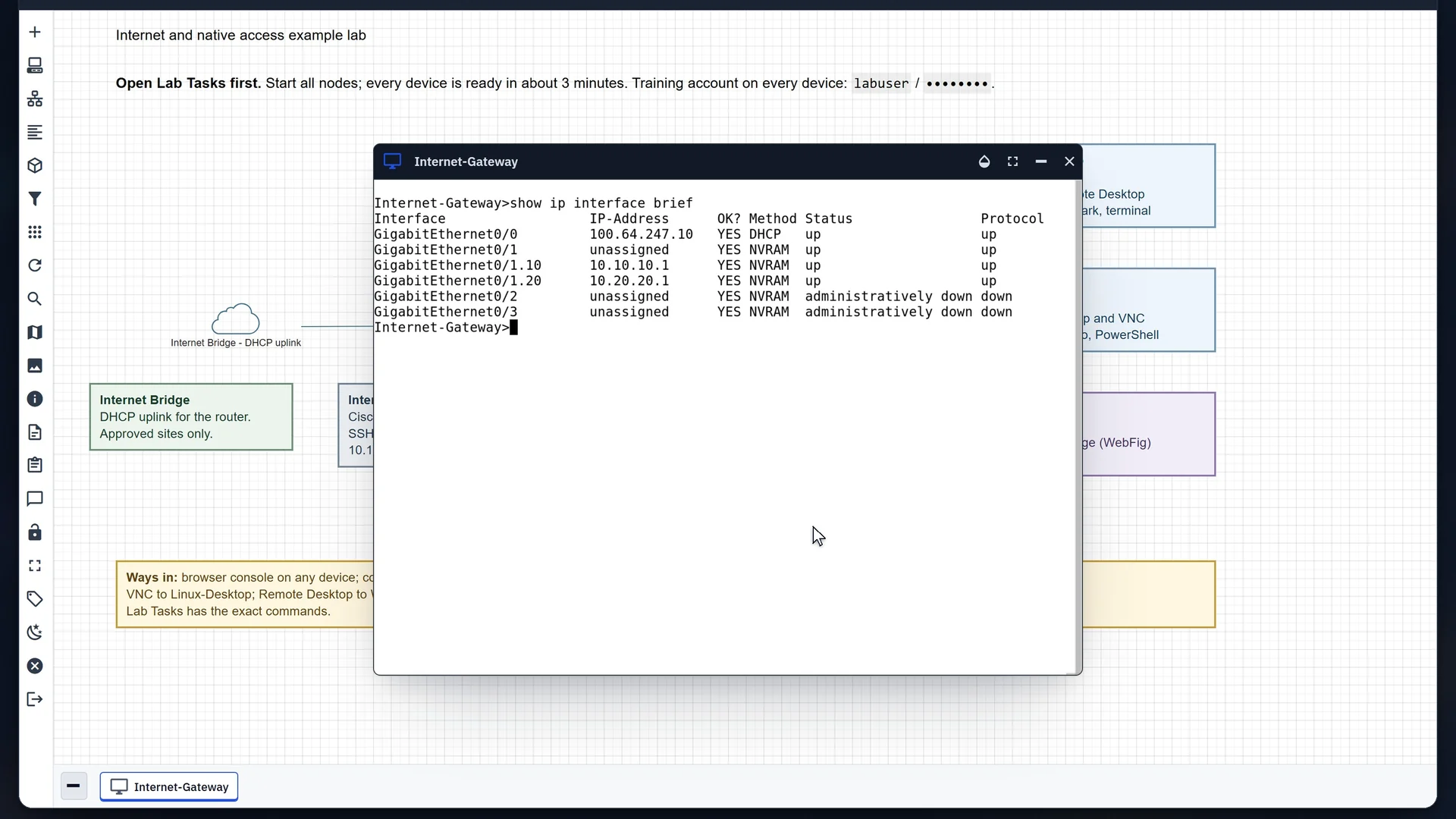
Workspace
Open your first lab
Sign in at
lab.cloudlabbox.com, then open the example lab in My Labs and its “Read this first” task.Add Node
Add nodes and choose images
Use exact names from the image list, and add up the vCPU and RAM set on every node you'll run at once.
Search the image listSee installed versions and Add Node settings
Import Lab
Import a .unl lab
Match its image names to the image list, put the .unl file in a ZIP archive, then use Import Lab in your personal folder.
Browser console
Use the HTML5 console
Ctrl+Alt+Shift opens the Guacamole sidebar and its clipboard; Ctrl+Alt+End sends Ctrl+Alt+Del.
Native access
Open a device from your own computer
Right-click a running node and choose Terminal (console), SSH, Web page, Remote Desktop or VNC. It opens in an app you already have.
Lab internet
Give a lab internet access
Connect one router to a Bridge network with DHCP, route through it without NAT, then request each destination on the Account page.
Device web pages
Open a device's web GUI
Use a browser on a desktop node inside the lab, or your own browser through an SSH tunnel.
Comparisons
Compare EVE-NG with GNS3 and CML
What each one runs, needs and costs, from the makers' own pages, checked on 2 November 2026.
Costs
Work out what EVE-NG costs
The free edition, the Base licence, the machine or cloud VM, and a hosted workspace, with a worked example.
Saving
Save your work and stop nodes
The topology saves itself; save each device's configuration inside the device, for example with
write memory.
Open lab devices from your own computer
Right-click a running node in your lab and choose how to connect. Each way opens in an app you already have, through a one-time link that only works for you. It isn't a VPN: it reaches only your own running devices.
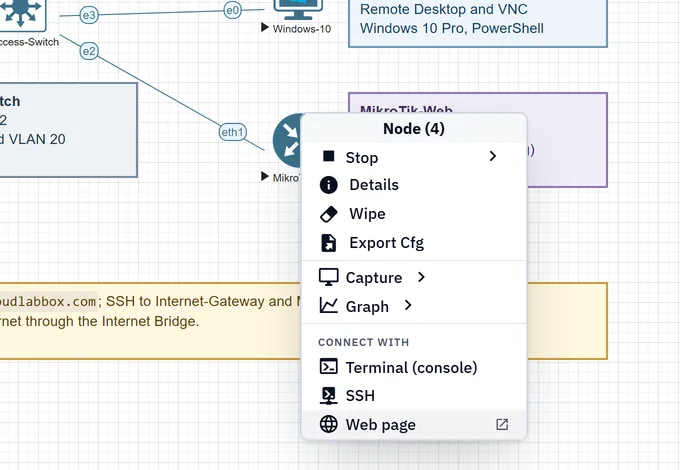
Right-click a running node in your lab at
lab.cloudlabbox.com. Its menu gains a Connect with section that lists only the ways that device offers: CloudLabBox checks which services it answers on.Choose a way, then finish in your own app.
What each way in the Connect with menu gives you, and what to do next Choose You get Then Terminal (console) A one-time command, ssh t-…@console.cloudlabbox.comPaste it into PowerShell or Command Prompt on Windows, or Terminal on macOS and Linux, and press Enter. You're at the console, with no password. SSH The same kind of one-time command Paste it the same way, then sign in with the device's own username and password. Web page A new tab at the device's own https://…devices.cloudlabbox.comaddress, with a real certificateSign in to the device's web GUI. The link works only in the browser that opened it. Remote Desktop A one-time .rdp file in your downloads Open it: Windows' Remote Desktop Connection connects you and asks for the device's own sign-in. VNC A one-time tunnel command, ssh -N -L 5901:device:5900 t-…@console.cloudlabbox.comPaste it into a terminal and leave it open, then connect any VNC viewer to localhost:5901.Use it in time. Commands work once, within 5 minutes. A web link opens once, within 2 minutes. Open a Remote Desktop file within 10 minutes. A connection can then stay open for up to 8 hours, and counts as active use like the browser workspace.
The first time a command connects, ssh asks whether to trust
console.cloudlabbox.com. Typeyesif it shows the host key ED25519SHA256:oZRMdA3QV9RE3goHk2SIUd+BZuSqyvsGr76BG8k/z8g.
Connect with a click: Native console mode
On the sign-in page at lab.cloudlabbox.com, set the console list to Native console. Clicking a running node then opens its connection: the Terminal (console) dialog for a text console, the VNC tunnel for a VNC console and the .rdp file for an RDP console. With HTML console, the default, the same click opens the console in the browser.
Which account Remote Desktop wants
Remote Desktop signs you in to the Windows device itself, so it wants that device's own account, never your CloudLabBox one. CloudLabBox doesn't set or change device passwords. Windows-10 in the example lab is labuser with no password; a Windows you installed uses the account you made during setup; a ready-made image uses whatever account its maker set up.
The first time you open one of the .rdp files, Windows asks you to tick I understand and allow RDP files to open on this device for my account, then OK; it asks once per Windows account. Then check that the publisher is console.cloudlabbox.com and connect. If Remote Desktop Connection asks for an account first, filled in with your own PC's name, choose More choices, then Use a different account, type the device's account and leave the password empty if it has none. When the device shows Unlock the PC, as the example lab's Windows-10 does, press Enter.
Or sign in to the console server over SSH
Every device running in your labs is also reachable at one SSH address, console.cloudlabbox.com, with your CloudLabBox username and password: a menu of consoles, and forwards for Remote Desktop, VNC, SSH and web pages.
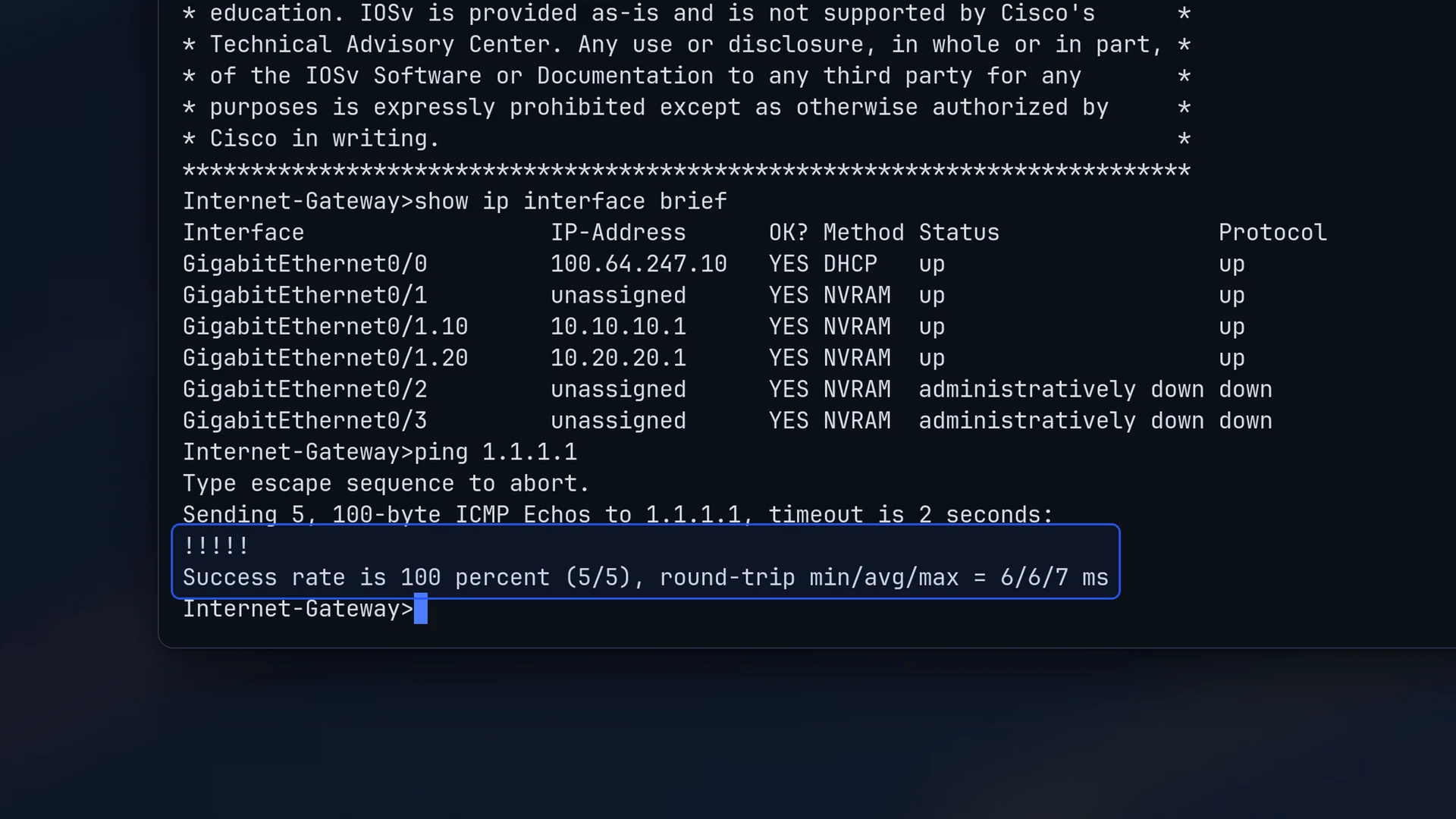
Fills in the commands on this page. It isn't saved or sent anywhere.
Sign in. Run
ssh USERNAME@in your terminal, PuTTY, SecureCRT or MobaXterm. If your network blocks port 22, runconsole.cloudlabbox.com ssh -p 443 USERNAME@.console.cloudlabbox.com The first time, check that your client shows the host key ED25519
SHA256:oZRMdA3QV9RE3goHk2SIUd+BZuSqyvsGr76BG8k/z8g. If it shows a different key, don't sign in; contact support.Open a console. Type a device's number or name from the menu. Ctrl+] returns to the menu,
hshows help andqsigns you out. To open one device directly, runssh -t USERNAME@.console.cloudlabbox.com DEVICE Use your own apps through a tunnel. Run the command for what you want to open, leave it running and point your app at
localhost.DEVICEis the device's name in the menu.The command for each way of opening a device To open Run Then Remote Desktop ssh -N -L 13389:DEVICE:3389 USERNAME@console.cloudlabbox.com Connect Remote Desktop to localhost:13389VNC ssh -N -L 5901:DEVICE:5900 USERNAME@console.cloudlabbox.com Open localhost:5901in a VNC viewerSSH on the device ssh -J USERNAME@console.cloudlabbox.com USER@ DEVICE Sign in with the device's own account Web page (HTTPS) ssh -N -L 8443:DEVICE:443 USERNAME@console.cloudlabbox.com Browse to https://localhost:8443Web page (HTTP) ssh -N -L 8080:DEVICE:80 USERNAME@console.cloudlabbox.com Browse to http://localhost:8080Text console in your own terminal app ssh -N -L 2001:DEVICE:23 USERNAME@console.cloudlabbox.com Telnet to localhost 2001In the example lab, this opens MikroTik WebFig at
https://localhost:8443:ssh -N -L 8443:MikroTik-Web:443 USERNAME@console.cloudlabbox.com What each method needs
Consoles work for any running device, with nothing set up on it. A node whose EVE console is VNC also opens on
localhost:5901with no network set-up. Remote Desktop, SSH, web pages and a device's own VNC service need that service running on the device and an address on its lab network. Windows needs Pro, Enterprise, Education or Server for incoming Remote Desktop.Finish. Close the tunnel windows and type
q. A sign-in lasts up to 8 hours and counts as active use, like the browser workspace: it uses On-Demand credit, and running nodes aren't stopped for inactivity.
Default usernames and passwords
Vendors' public default sign-ins for fresh appliance images. A lab you've already configured can use different passwords.
Vendor defaults
71 devices. Search, or show the full list.
| Device | Console sign-in | Web sign-in and notes |
|---|---|---|
| 6Wind Turbo | Username adminPassword adminUsername viewerPassword viewerUsername rootPassword 6windos | — |
| A10 vThunder | Username adminPassword a10 | — |
| Apple macOS osx-10 | Password eve | — |
| Arista CloudVision Portal | Username cvpadmin | https://<eth0's ip>Username cvpadminPassword cvpadmin |
| Arista vEOS | Username adminPassword N/A | — |
| Aruba ClearPass | Username appadminPassword eTIPS123 | — |
| Aruba CX Switch | Username adminPassword N/A | — |
| Check Point | Username adminPassword adminR81Username adminPassword admin123 | Username adminPassword adminR81https://192.168.0.1Username adminPassword admin123 |
| Cisco ACS 5.8.1 (Licensed) | Username adminPassword Test123 | Username ACSAdminPassword Test123 |
| Cisco ESA | Username adminPassword ironport | — |
| Cisco FirePOWER6 | Username adminPassword Admin123 | — |
| Cisco ISE | Go through set-up process | — |
| Cisco Nexus 9000v switch | Username adminPassword N/A | — |
| NX-OSv | Username adminPassword admin | — |
| Cisco StealthWatch | Username rootPassword lan1copeUsername sysadminPassword lan1cope | Username adminPassword lan411cope |
| Cisco TRex | Username rootPassword root | — |
| Cisco Viptela SD-WAN | Username adminPassword admin | — |
| Cisco vWAAS | Username adminPassword default | — |
| Cisco WSA | Username adminPassword ironport | — |
| Citrix Netscaler | Username nsrootPassword nsroot | — |
| Cumulus VX | Username cumulusPassword CumulusLinux! | The password for versions after 4.1.1 is cumulus |
| DANOS vRouter | Username adminPassword admin123 | — |
| Extreme EXOS | Username adminPassword N/A | — |
| F5 BIGIP | Username rootPassword default | Username adminPassword admin |
| Fortinet | Username adminPassword N/A | Username adminPassword N/A |
| FreeBSD | Password Test123 | — |
| FreeNAS | Username rootPassword root | Username rootPassword root |
| Hillstone | Username hillstonePassword hillstone | — |
| Huawei | AR1000v:Username superPassword superhuaweiar1k-5.170-V300R019C00SPC300-Auto-update-esn:Username adminPassword admin@huawei.comUSG6000v:Password admin | USG6000v:Username adminPassword Admin@123 |
| iKuai | Username adminPassword admin | — |
| Infoblox DDI | Username adminPassword infoblox | — |
| Jumpserver | Username rootPassword Test@123 | http://<ip>:80Username adminPassword admin |
| Juniper cRPD | Username rootPassword Password1! | — |
| Juniper J-Space | Username adminPassword abc123 | Username superPassword juniper123 |
| Juniper vMX | Username rootPassword N/A | — |
| Juniper vQFX | PFE:Username rootPassword N/ARE:Username rootPassword Juniper | — |
| Juniper vRR | Username rootPassword N/A | — |
| Juniper vSRX-NG | Username rootPassword N/A | — |
| Juniper vSRX3.0 | Username rootPassword N/A | — |
| Mikrotik Cloud router | Username adminPassword N/A | Username adminPassword N/A |
| Netgate TNSR | system:Username adminPassword admin123CLI:Username tnsrPassword tnsr-default | — |
| Nokia/Timos | username: admin Password: admin | — |
| OpenWRT | — | http://192.168.0.1Username rootPassword Test@123 |
| OPNsense | Username rootPassword opnsense | Username rootPassword opnsense |
| Palo Alto | Username adminPassword admin | — |
| Panabit | Username rootPassword panaos | http://192.168.1.100Username adminPassword panabit |
| pfSense FW | Username adminPassword pfsense | — |
| Pi-hole(DNS) | Username rootPassword root | https://[ip]/adminUsername —Password admin |
| Plixer Scrutinizer | Username rootPassword scrutinizer | — |
| qaxvfw-73585-standard | Username adminPassword !1fw@2soc#3vpn | Username adminPassword !1fw@2soc#3vpn |
| Radware Alteon | Username radwarePassword radwareUsername adminPassword admin | Username adminPassword admin |
| ruijieswitch-RG-NSE-V1.03 | Username adminPassword ruijie | — |
| Riverbed SteelHead Virtual CX | Username adminPassword password | — |
| Sophos FW | Username N/APassword admin | https://ip:4444Username adminPassword N/A |
| Sophos UTM | Username adminPassword N/A | https://ip:4444Username adminPassword N/A |
| TrueNAS | Username rootPassword root | — |
| Versa Networks SD-WAN | username/passwords:Director:CLI: admin/versa123GUI:Administrator/versa123Controller/FlexVNFversa/versa123 | ss |
| VPP | Username rootPassword vpp | — |
| VyOS vRouter | Username vyosPassword vyos | — |
| WatchGuard FireboxV | Username adminPassword readwrite | https://<External_IP_Address>:8080https://10.0.1.1:8080Username adminPassword readwrite |
| Windows | Password Test123 | — |
| Zabbix3.4 | Username rootPassword zabbix-eve | cp /etc/sysconfig/network-script/ifcfg-ens192 /etc/sysconfig/network-script/ifcfg-ens192ifup ens3zabbixservice zabbix-server startservice mysql startservice httpd start |
| vWAC | https://10.252.252.252Username adminPassword admin | — |
| Linux - Ubuntu 21.04 Desktop (linux-ubuntu-21.04-desktop) | Username userPassword Test123 | Verified CloudLabBox base image on 2026-07-06. Root login is locked. |
| Linux - Ubuntu MATE 20.04 (linux-ubuntu-mate-20.04) | Username userPassword Test123 | Verified CloudLabBox base image on 2026-07-06. |
| Linux - Ubuntu 18.04 Desktop (linux-ubuntu-18.04-desktop) | Username evePassword eve | Verified CloudLabBox base image on 2026-07-06. |
| Linux - Ubuntu 16.04.1 Desktop (linux-ubuntu-16.04.1-desktop) | Username testPassword Test123Username rootPassword Test123 | Verified CloudLabBox base image on 2026-07-06. |
| Linux - CentOS 7.6 GUI (linux-centos7.6-gui) | Username rootPassword eve@123 | Verified CloudLabBox base image on 2026-07-06. User emulatedlab exists but its password was not verified. |
| Linux - CentOS 8 (linux-centos-8) | Username userPassword Test123Username rootPassword Test123 | Verified CloudLabBox base image on 2026-07-06. |
| Linux - Debian 10.3.0 (linux-debian-10.3.0) | Username rootPassword root | Verified CloudLabBox base image on 2026-07-06. User xzjt exists but its password was not verified. |
| Linux - Kali 2018.1 AMD64 (linux-kali-2018.1-amd64) | Username rootPassword root | Verified CloudLabBox base image on 2026-07-06. |
Search the image list
1,596 images in EVE-NG's Add Node list, refreshed 14 October 2026. CloudLabBox doesn't provide vendor licences: bring your own licence or evaluation where an image needs one.
IOSvCisco13 images
vios-adventerprisek9-m.spa.159-3.m9vios-adventerprisek9-m.spa.159-3.m8vios-adventerprisek9-m.SPA.159-3.M6vios-adventerprisek9-m.SPA.159-3.M4
vSRXJuniper26 images
vsrxng-24.4R1.9vsrxng-24.2R1-S1.10vsrxng-24.2R1.17vsrxng-23.4R2-S3.9
FortiGateFortinet27 images
fortinet-FGT-v7.0.17.M-build0682fortinet-FGT-v7.0.15.M-build0632fortinet-FGT-v7.0.14.M-build0601fortinet-FGT-v7.0.13.M-build0566
Search needs JavaScript. Here are a few names; browse every image by vendor for the rest.
Video guides
Walkthroughs from the CloudLabBox YouTube channel. Each one loads from YouTube only when you press play.
Set up and request lab internet access
Open a device's web GUI from inside the lab
Activate an F5 BIG-IP licence in EVE-NG


Get help from a person
Still stuck? Ask in the CloudLabBox Discord (opens in a new tab) or email cloudlabbox@gmail.com.