CLB / DEMO APPLICATION / FREE
Try a hosted EVE‑NG lab before you choose.
Use a short-lived workspace to inspect the real EVE-NG interface, search image choices, create nodes, and open consoles. The demo needs no payment details.
Demo walkthroughPRODUCT CLIP
Demo Creation
Create a Demo Lab
This is a Demo lab purely to prove that the product works and that you can access the firmware/images you want to access.
Checking free-seat status…
- 30-minute demo workspace
- 16 GB RAM / 1 vCPU
- Search available images
- Create nodes and open consoles
- Use CloudLabBox Connect to manage devices natively
- No payment details
What the demo should prove
- 01Personal workspace
Find the personal lab directory and open the EVE-NG interface.
- 02Real image choices
Search current records and confirm the exact image names you need.
- 03Node workflow
Create, start, console, save, and stop a node within the demo limits.
- 04Native device management
Use CloudLabBox Connect to open a supported connection in a native application.
DEMO RESOURCE LIMIT / REQUIRED
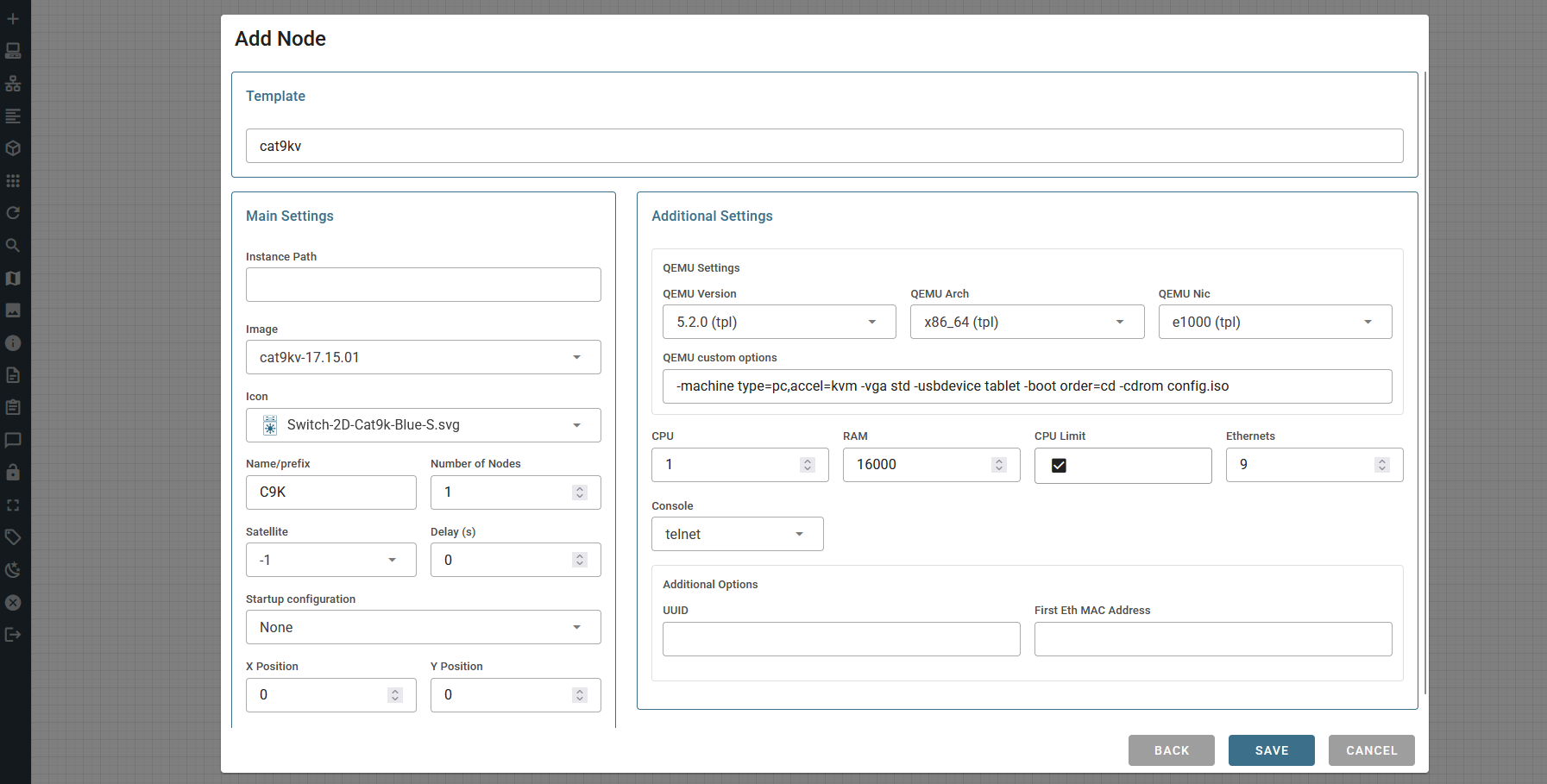
Keep the demo within 1 EVE-NG vCPU and 16 GB RAM.
The free demo has one EVE-NG vCPU and 16 GB RAM. Many EVE-NG templates start with a higher CPU value, so edit the node before you start it.
- Open the node creation screen, or right-click an existing stopped node and select Edit.
- Set CPU to 1.
- Set RAM so the running node stays within the 16 GB demo allocation.
- Save the node, then start it.