Video walkthrough
See how to configure the supported CloudLabBox internet path, then request the exact domains, wildcard domains, public IPv4 addresses, protocols, and ports that your lab needs.
Use one normal EVE Bridge and one DHCP router uplink. The existing router then carries traffic from its private inside networks to the controlled CloudLabBox internet path, and CloudLabBox Connect learns each routed device automatically.
See how to configure the supported CloudLabBox internet path, then request the exact domains, wildcard domains, public IPv4 addresses, protocols, and ports that your lab needs.
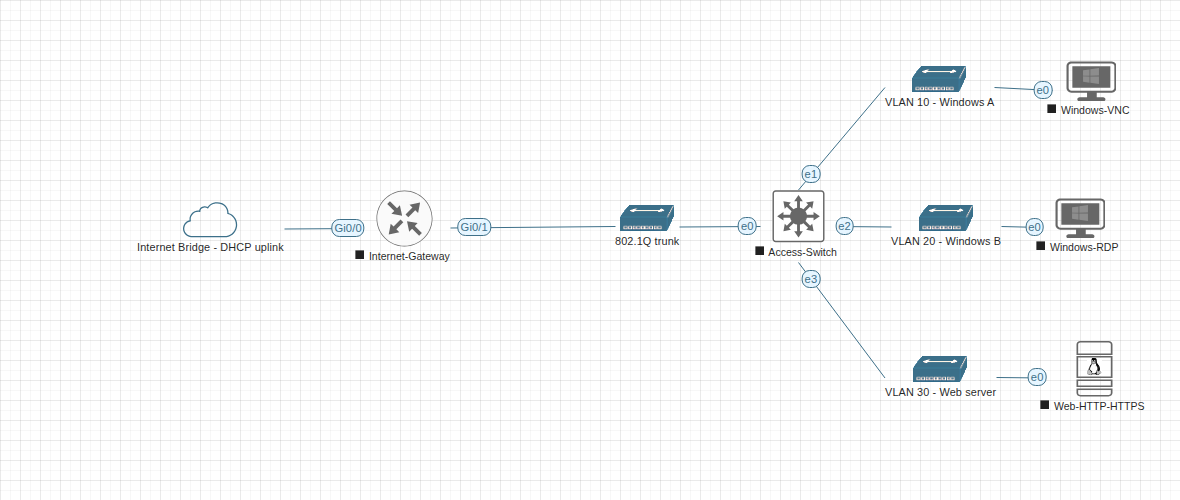
Open the full router, switch, device, and Windows RDP configuration.
If this guide solved one part of the problem, these pages help with the next step — choosing a plan, trying the platform, or finding the wider setup help around it.
Helpful follow-up answers around this tutorial topic.
No. Internet access is denied by default. Request the exact domain or public IPv4 destination and wait for approval.
Use a normal EVE Network object with Type Bridge. The name is only a label. Connect one router outside interface and configure it for DHCP.
No. CloudLabBox applies NAT after traffic leaves the router. Keeping the real inside source address also lets Connect learn the exact target.
Use the Internet and CloudLabBox Connect FAQ, Discord, or support email.
Browse the docs, start a free demo, or move to a paid plan if you need more room for a full lab.