MikroTik MTCNA practice labs
19 guided labs on RouterOS 7 that follow every hands-on module of the MTCNA training outline: first access and the CLI, users and services, Internet access, DHCP and ARP, backups and upgrades, bridging and RSTP, VLAN filtering, static routing, firewall and NAT, queues and PCQ, PPPoE, tunnels, WireGuard and the monitoring tools, finished with two troubleshooting labs and a branch-office capstone.
- Guided labs
- 19
- Follows
- MikroTik MTCNA, on RouterOS v7
- Runs every lab
- Lite
- Devices
- RouterOS, Alpine Linux, EVE-NG GUI server and VPCS
Who these labs are for
For anyone preparing for the MTCNA course and exam, and engineers who look after MikroTik routers at a small business, school or ISP. You need basic TCP/IP and subnetting; no MikroTik experience is assumed.
The routers are MikroTik CHR, which has no radio or switch chip, so wireless is a reading section rather than a lab. Without a paid licence CHR limits each interface to about 1 Mbit/s, so the queue limits sit below that.
The 19 labs
Every lab in the folder, as the workspace lists them, with what each runs and the smallest plan that fits. Read on 2 November 2026.
MTCNA course 19 labs
Shared folderMikroTik MTCNA RouterOS v7 guided labs
One MTCNA module per lab, then two troubleshooting labs and a branch office built from scratch.
-
01First access and the RouterOS command line
Log in to a brand-new RouterOS 7 router, learn the command line you will use in every other lab, give the router a name, a clock and a LAN address, then manage it from a browser with WebFig.
1× RouterOS, 1× EVE-NG GUI server, 1× VPCS
3 vCPU, 3,328 MBFits LiteRuns in the free demo
-
02Users services and secure management access
Give each administrator their own account with the right rights, switch off the management services nobody needs, and allow SSH, WinBox and MAC access only from the IT network.
2× Alpine Linux, 1× RouterOS
3 vCPU, 1,280 MBFits LiteRuns in the free demo
-
03Connect an office to the Internet
Build the classic small-office set-up by hand: a DHCP client on the WAN, a LAN bridge with a DHCP server, the router as DNS cache, and NAT masquerade so the office PCs reach the Internet.
2× RouterOS, 2× VPCS
4 vCPU, 2,560 MBFits LiteRuns in the free demo
-
04DHCP server in depth and ARP
Run a working DHCP server like a professional: read and manage leases, hand out extra options, reserve an address for a printer, and use ARP reply-only so only devices that got their address from DHCP can use the network.
1× Alpine Linux, 1× RouterOS, 2× VPCS
4 vCPU, 2,816 MBFits LiteRuns in the free demo
-
05Backups exports upgrades and recovery
Protect a router's configuration the way a support team does: readable exports and encrypted binary backups, copied off the router, restored when something is deleted, and taken automatically every night. Then look at packages, update channels, resets and Netinstall.
2× RouterOS
2 vCPU, 512 MBFits LiteRuns in the free demo
-
06Bridging MAC learning and RSTP
Turn three RouterOS devices into switches with bridges, watch them learn MAC addresses, and let RSTP break the loop in a ring of links: choose the root bridge, find the blocked port, protect the edge ports, and test a link failure. Ends with a reading section on RouterOS wireless.
3× RouterOS, 2× VPCS
5 vCPU, 2,816 MBFits LiteRuns in the free demo
-
07VLANs with bridge VLAN filtering
Split one switched network into staff, guest and management VLANs the RouterOS 7 way: one bridge per switch, access and trunk ports with PVID and frame types, the bridge VLAN table, VLAN filtering switched on last, and a router-on-a-stick for routing between VLANs.
3× RouterOS, 3× VPCS
6 vCPU, 3,840 MBFits LiteRuns in the free demo
-
08Static routing
Connect three sites with static routes: read the RouterOS 7 routing table and its flags, add routes to remote networks, use a default route with a more specific exception, and add a backup route with a higher distance, then find out why a backup must work in both directions.
3× RouterOS, 3× VPCS
6 vCPU, 3,840 MBFits LiteRuns in the free demo
-
09Firewall - protect the router
Close an Internet-facing router: see what an outsider can reach, then build the input chain rule by rule with connection tracking, an address list for administrators, logging and counters, and prove the result from outside and inside.
2× Alpine Linux, 2× RouterOS, 1× VPCS
5 vCPU, 2,560 MBFits LiteRuns in the free demo
-
10Firewall - protect the customers address lists and FastTrack
Protect the networks behind the router: prove that NAT is not a firewall, build the forward chain the way RouterOS's default configuration does, keep guests away from staff, block sites with an address list, and see what FastTrack does.
2× RouterOS, 1× Alpine Linux, 2× VPCS
5 vCPU, 3,072 MBFits LiteRuns in the free demo
-
11NAT - src-nat masquerade port forwarding 1 -1 NAT redirect and hairpin
Publish an internal web server to the Internet with a port forward and a 1:1 NAT address, use src-nat instead of masquerade on a static WAN, force every DNS query through the router with redirect, and make the public address work from inside with hairpin NAT.
3× Alpine Linux, 2× RouterOS
5 vCPU, 2,048 MBFits LiteRuns in the free demo
-
12QoS - simple queues burst and PCQ
Measure real throughput with iperf, cap one user with a simple queue, find out why FastTrack makes the queue do nothing, add burst, and then share the line fairly between every user with one PCQ queue.
3× Alpine Linux, 1× RouterOS
4 vCPU, 1,792 MBFits LiteRuns in the free demo
-
13PPPoE - access server and customer routers
Build a small ISP access network: an IP pool, a PPP profile with DNS and a speed limit, customer accounts (one with a fixed address), a PPPoE server, and two customer routers that dial in, get point-to-point addresses and a default route, and NAT their LAN.
3× RouterOS, 1× VPCS
4 vCPU, 1,792 MBFits LiteRuns in the free demo
-
14Tunnels - IPIP GRE and EoIP
Join two sites across the Internet three ways: an IPIP tunnel and a GRE tunnel with keepalive carrying routed traffic (with automatic fail-over between them), and an EoIP tunnel that stretches the head-office LAN to a shop at layer 2, encrypted with IPsec.
3× RouterOS, 3× VPCS
6 vCPU, 3,840 MBFits LiteRuns in the free demo
-
15WireGuard - site-to-site and remote access
Build RouterOS 7's modern VPN: a WireGuard hub at head office with a branch router and a travelling laptop as peers, keys exchanged by hand, allowed addresses doing the routing policy, routes for the remote LANs and a firewall hole for the tunnel.
4× RouterOS, 2× VPCS
6 vCPU, 3,072 MBFits LiteRuns in the free demo
-
16Monitoring and troubleshooting tools
Use RouterOS's own toolbox on a router that is misbehaving: ping and traceroute with options, interface statistics, Torch to find a mystery traffic source, the profiler, the packet sniffer, netwatch, remote syslog, SNMP and a support file.
2× RouterOS, 1× Alpine Linux, 1× VPCS
4 vCPU, 2,048 MBFits LiteRuns in the free demo
-
17Troubleshooting - the office has no Internet
A small-office router built by someone else doesn't work: PCs get no addresses, then no Internet, then no names. Work bottom-up with RouterOS tools to find six realistic faults, fix each one and record what you found.
2× RouterOS, 1× Alpine Linux, 2× VPCS
5 vCPU, 3,072 MBFits LiteRuns in the free demo
-
18Troubleshooting - VLANs and bridges
The hotel VLAN network from lab 7 has been 'tidied up' by a contractor and now staff, guests and the switches' management are each broken in a different way. Use the bridge's own tables to find four VLAN faults and fix them.
3× RouterOS, 3× VPCS
6 vCPU, 3,840 MBFits LiteRuns in the free demo
-
19Capstone - build a branch office from scratch
Put the whole MTCNA course together: a new branch router dials PPPoE, serves staff and guest VLANs through a managed switch with DHCP and DNS, protects itself and its users with the firewall, shares the guest line fairly with PCQ, joins head office over WireGuard, and is hardened and backed up.
4× RouterOS, 2× VPCS
6 vCPU, 3,072 MBFits LiteRuns in the free demo
Devices and images
The exact Add Node images the labs use, and the vCPU and RAM their nodes are set to. Your plan counts what each running node is set to.
| Device | Image in Add Node | Set to | Labs | Nodes |
|---|---|---|---|---|
| MikroTik RouterOS | mikrotik-7.14.2 | 1 vCPU, 256 MB | 19 | 44 |
| Alpine Linux | clbalpinebase-alpine-base-3-20-3 | 1 vCPU, 512 MB | 8 | 14 |
| EVE-NG GUI server (Docker) | eve-gui-server:latest | 1 vCPU, 2,048 MB | 1 | 1 |
| VPCS host | Built in to EVE-NG | counted as 1 vCPU, 1,024 MB | 15 | 30 |
How to open the labs
Sign in to your workspace at
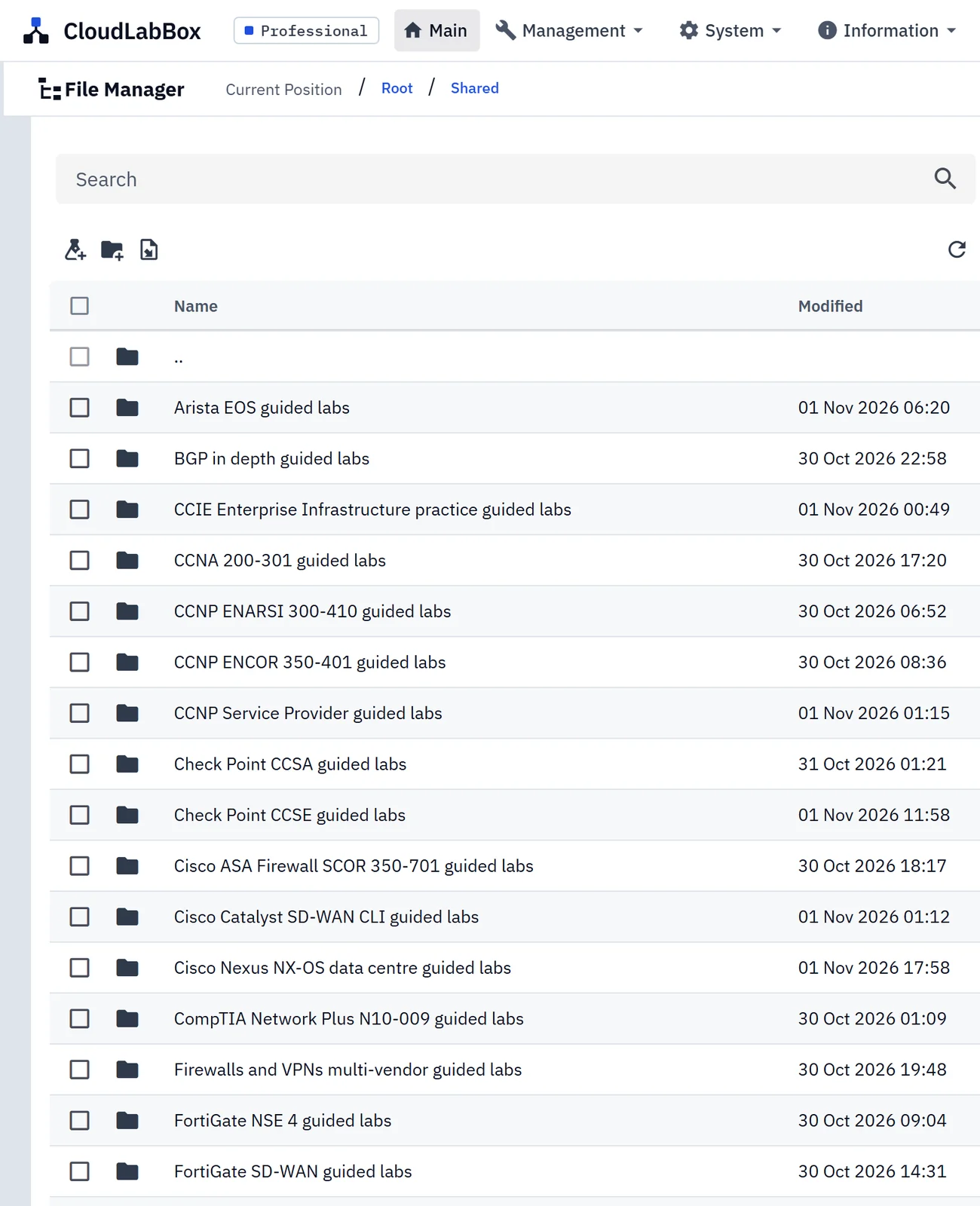
lab.cloudlabbox.com.In File Manager, open Shared, then the folder
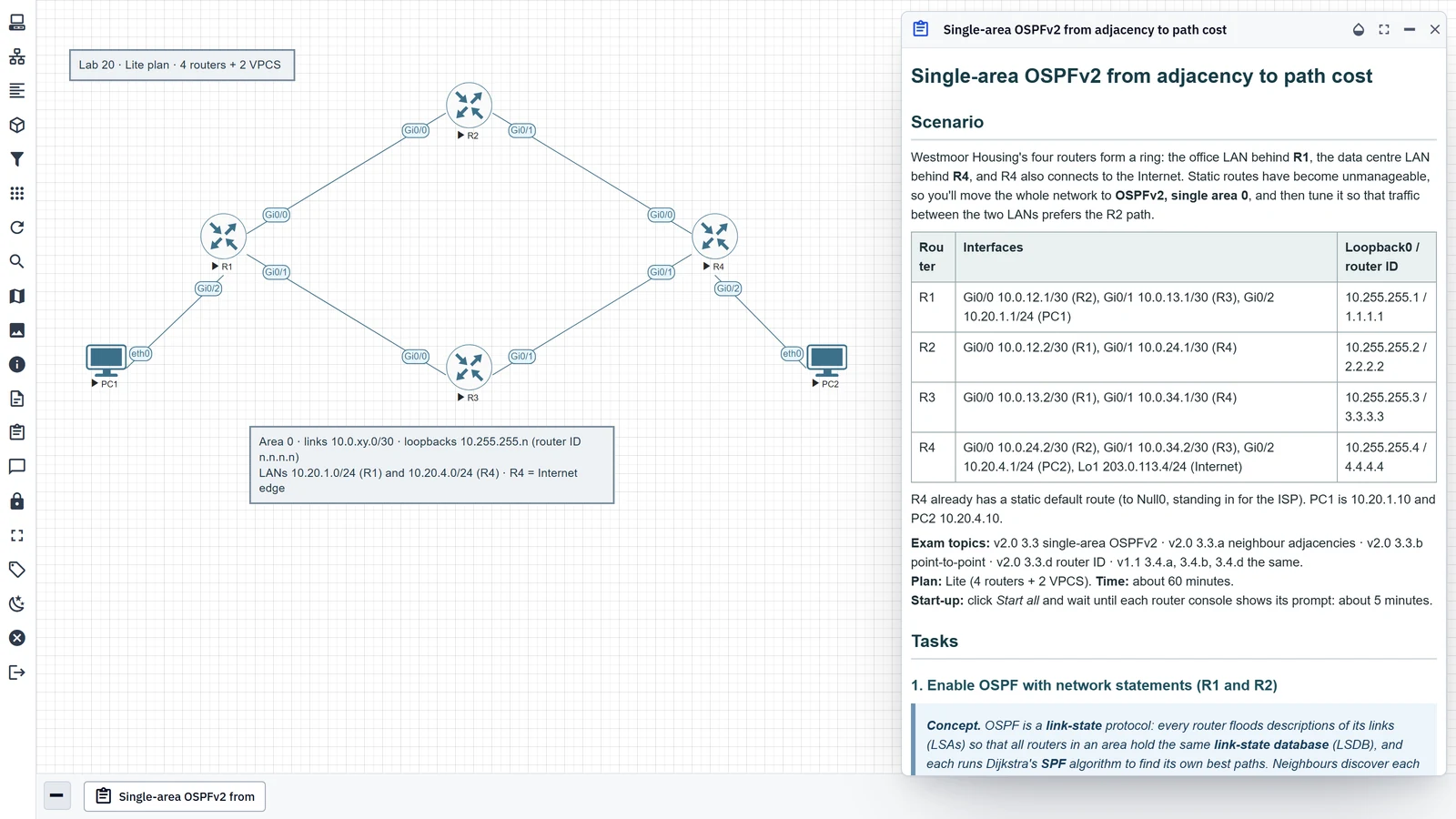
MikroTik MTCNA RouterOS v7 guided labs.Open a lab and start its nodes, then open Lab Tasks for the steps.
The labs are read-only. You can start the nodes and configure the devices, but changes to the topology can’t be saved. To change a lab, rebuild it in your own folder.
Questions about the MikroTik MTCNA labs
Are these MikroTik MTCNA labs free?
They’re included with every lab plan, with nothing extra to pay, rather than free. Plans start at £3 a day or £0.50 an hour. To try one first, the free demo gives you 30 minutes with 6 vCPU and 8 GB, enough to run every one of these labs.
Which plan do I need for these labs?
Lite, with 6 vCPU and 8 GB, runs every lab here. EVE-NG admits a node by the vCPU and RAM configured on it, so a lab needs the total its running nodes are set to. The biggest here, “VLANs with bridge VLAN filtering”, needs 6 vCPU and 3,840 MB. Each lab’s Lab Tasks pane names the plan it needs.
Can I change these labs?
You can start the nodes and configure the devices, but the labs are read-only: changes to the topology can’t be saved. To change one, rebuild it in your own folder.
Are these labs from MikroTik?
No. CloudLabBox wrote them to follow the topics of MikroTik’s MTCNA (MikroTik Certified Network Associate) training outline. They aren’t training material from MikroTik, and CloudLabBox is independent of MikroTik.
Try a lab before you choose
The free demo is a real workspace for 30 minutes, with 6 vCPU and 8 GB: enough to run every one of these labs. No card and no email.
More practice labs
- CCNA practice labs online
- CompTIA Network+ practice labs
- CCNP ENCOR practice labs
- CCNP ENARSI practice labs
- CCNP Service Provider practice labs
- Cisco NX-OS data centre practice labs
- CCIE Enterprise Infrastructure practice labs
- Network automation practice labs
- Cisco ASA firewall practice labs
- Packet analysis labs with Wireshark and tcpdump
- FortiGate practice labs
- FortiGate SD-WAN practice labs
- Cisco Catalyst SD-WAN CLI practice labs
- Palo Alto firewall practice labs
- Check Point CCSA practice labs
- Check Point CCSE practice labs
- Multi-vendor firewall and VPN practice labs
- BGP practice labs across vendors
- Nokia SR OS NRS I practice labs
- MPLS and L3VPN practice labs
- VXLAN EVPN practice labs across vendors
- IPv6 practice labs across vendors
- Linux labs for network engineers
- Multi-vendor troubleshooting practice labs
- JNCIA-Junos practice labs
- JNCIS-ENT practice labs
- JNCIA-SEC and JNCIS-SEC practice labs
- JNCIS-SP JN0-364 practice labs
- JNCIP-ENT JN0-650 practice labs
- Arista EOS practice labs
- HPE Aruba Networking CX switching labs
- Huawei HCIA-Datacom practice labs
- HCIP-Datacom Core practice labs
- MikroTik MTCRE practice labs
- MikroTik MTCINE practice labs
- MikroTik MTCSE practice labs
- MikroTik MTCTCE practice labs
- MikroTik MTCIPv6E practice labs
- All practice labs
CloudLabBox is independent of MikroTik. The labs follow exam topics and aren’t vendor training material; vendor names identify the exams and the images in the workspace.